
This article discusses or promotes software. To learn more about this type of content, click here.
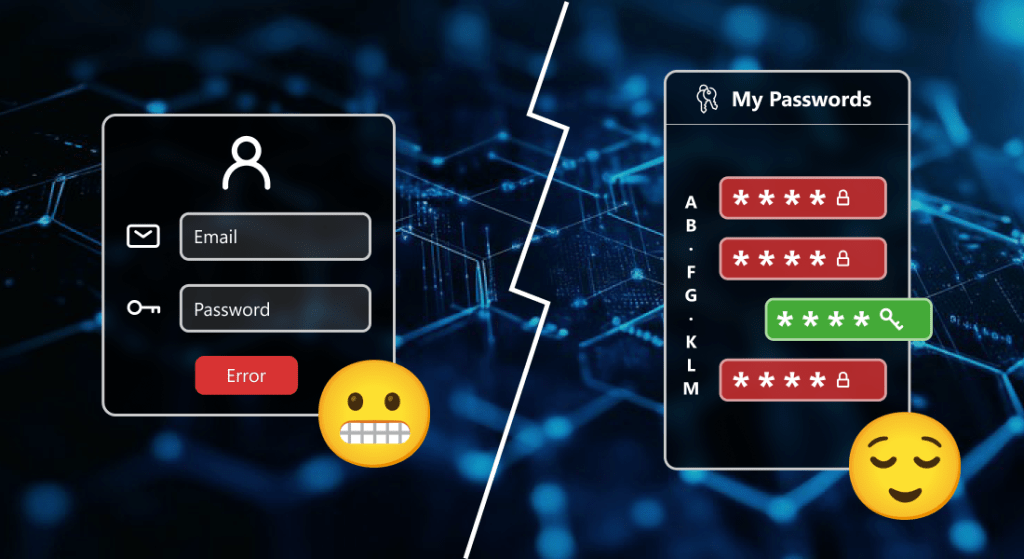
Picture this: You login to your email one morning, and notice a new message from your phone carrier, informing you about upcoming changes to your plan and inviting you to take action on them early. You click the link, and are greeted with a login page asking for a username and a password.
“What’s my username?” You ask yourself. “My email? Which email?” “Password? I haven’t signed into this website in years…”
You reach down into the depths of your of your memory, trying desperately to grab hold of anything that will help you. Nothing.
“…and, yeah I’ll have to reset it.” you sigh, before heading off to work.
Maybe this sounds like you. Or, maybe it doesn’t. Despite engineers’ best efforts to simplify user experiences across their software products, somehow passwords are still one of the heaviest weights holding us back from “just signing up” for that new app they were forced to download, or performing simple tasks on our accounts that would otherwise take a matter of minutes. When we’re met with the same predicament over and over again, naturally, we just get lazy, and start using the same 1-3 passwords, or clicking “Yes”, the moment any save password prompt pops up on our device. “Who’s going to hack my account?”, you might ask. Unfortunately, like most things in tech, it’s not that straightforward.
Potential attackers are almost never after you in isolation, they’re after people who don’t know what they’re doing, and those people make for easy targets. Reusing passwords or using mnemonic phrases to decrease the load on your brain may seem sensible, but if an attacker breaks into your Spotify account, you wouldn’t want them to also have the password to your bank account. Saving them in Safari or Chrome appears safer, but guess what? That’s the first place malicious software checks if it ever gets on your device. There’s even a whole publicly available list with over 47,000 commonly used passwords that websites frequently check for and disallow, which you can even look at yourself.
Fortunately, it’s not all bad news. With a smidge of time and effort, you can become the keyring master of your accounts, and even teach your friends and family how to do the same. Today, I wanted to cover the basics of password managers, and how they strengthen your security while also simplifying your digital life.
What are password managers?
A password manager is a small digital lockbox that consolidates the logins and passwords for your accounts in a single, centralized location. They usually come in the form of a mobile app paired with a browser extension, and there are many reputable ones to choose from. I won’t be doing a full comparison between them in this article, since there are tons of them already if you search around. There are free and paid ones, each with varying feature sets. They can even generate unique passwords for you, and remember them for each app or website. Some of them also include additional features, like saving notes and addresses. You simply download an app, register for an account, and start importing your existing passwords to the service. After around 10-15 minutes, you’ll have a hardened replacement for every code you had to remember or write down somewhere. Honestly, it’s really not more complicated than that!
What if the password manager gets hacked?
This is one of the first and most common talking points I hear, and it’s a warranted concern. In fact, it’s something I referenced in one of my own articles recently. It’s certainly true that the more of your personal information you keep in one place, the greater the damage becomes if something ever does happen. The good news with password managers, though, is that they recognize this, and use a technology called “zero-knowledge encryption” to make cracking your vault significantly more difficult.
In a nutshell, zero-knowledge encryption, or similarly, end-to-end encryption, means that all of your passwords and login data are obfuscated with a key stored on your device, before it’s ever transmitted to the password manager company’s servers. In other words, by the time your passwords are saved to the cloud somewhere, they’re already encrypted, so not even the company you’re storing them with can see them. Some companies even reveal all their application’s source code to the public, so anyone (including you) can inspect their apps and validate that claim. The only way for an attacker to possibly gain access is if you incidentally gave away your master password, or it was so incredibly simple that someone was able to guess it. That’s why creating an extra long and secure one is paramount here.
If you want to learn more about how end-to-end encryption works, check out this 5-minute video from The Wall Street Journal. It covers messaging apps, but it’s the same technology behind password managers, and instead of a recipient with the key, you’re the only one who has it.
For advanced users, it’s also possible to use self-hosted or local password managers, like KeePassXC. With these products, your passwords are stored only on your computer and are never sent to a company’s server at all, so the only person you have to trust is yourself. These don’t natively support syncing across devices without some extra hurdles though, so I won’t be covering them today.
Can’t I just use the one that comes with my phone or web browser?
This is the next step up from the tried and false method of short, guessable and reusable passwords, and it certainly makes you more secure than that. However, it’s a dangerous precedent for more reasons than one. Firstly, Google accounts like the ones used for Chrome are much higher targets for attackers, and get broken into much more frequently than password managers do. I mean, if your Google account was compromised, the attacker would be in for an absolute feast of information about you. Apple, another popular company that centralizes user passwords, is admittedly tighter with their security, but still not foolproof.
Even if your Google or Apple account doesn’t get stolen, if any of your devices become infected with malware, the first place it looks is every installed web browser on your device and gobbles up all your passwords, even finding ways into accounts where the passwords aren’t saved. For this reason, using a third-party password manager greatly isolates you from this common pool of people that attackers are typically after.
Do I really need to switch?
It all depends on what your current situation looks like, and how much you value your digital security.
- If you fall into the first cohort of people I described, then yes, this guide is for you. Reusing passwords or making them too simple is incredibly dangerous for your online security, and positions you right at the top of an attacker’s list.
- If you’re writing them down in a physical location, like a notebook, no, you can continue to use that current method. But if you’re not keeping that notebook up to date, are becoming frustrated, and are still getting locked out, you may want to consider a safe digital alternative, like the one in this guide.
- If you’re saving them to your device, like Chrome or Safari, potentially:
- If you primarily use Apple devices, you’re in a safer position, since the company prioritizes security over user convenience more so than, say, Google, one of its main competitors. For example, they force every Apple account to enroll in 2-factor-authentication, whereas many Google users skip this out of laziness. Additionally, Apple’s locked-down approach to hardware and software makes it tougher for attackers to lodge their way into your devices, albeit not impossible.
- If you primarily use Google devices, or use the Google Chrome browser on your computer, you probably should. It’s not that Google doesn’t take security seriously — they have been making changes to tighten the bolt on common account takeover methods — but since Chrome runs on more devices than Apple’s browser and password apps, and supports more third-party integrations, the chances of your passwords being breached is generally higher and at a greater interest for attackers. Up until recently, Chrome didn’t even re-prompt for a PIN or fingerprint when filling a password.
- If you’re already using a different password manager, you’re on top of your game and probably don’t need my advice, but feel free to read it anyway!
Also, one of the hidden benefits of using a password manager is that it frees you from the dependence of using a specific company’s browser on all your devices. Want to use Safari on your iPhone, but Firefox on your computer? Now, you can, and take your passwords with you too.
How can I get started?
Glad you asked! The first step is to identify where your passwords are currently stored. If the answer is nowhere, you’ll have a fresh slate to work with and will benefit the most from this guide. If you’re already saving them directly to your device or browser, you can easily export them and import them into a different one. I’ll explain that further down.
There are a wealth of secure and reliable password managers with free and paid plans, and each with varying feature sets. 1Password, Bitwarden, DashLane, and Keeper are all examples of these. I’d personally advise against using LastPass for the time being, as it’s been through numerous data breaches and failed to notify its customers in a timely manner. The good news is that you don’t need to pay to up your security.
For this guide, I’ll be using Bitwarden as an example. I’ve chosen them due to their strong commitment to transparency throughout their apps and codebase, and publicly documenting the internals of their apps, making it easy for external security researchers to audit them for vulnerabilities. Their generous free plan also makes for a great starting point. I don’t recommend bundling security products together, like VPN and identity monitoring alongside a password manager. I have no affiliation with Bitwarden and they have no editorial control over this content, so if you want to weigh other options, please take a look around before proceeding. As always, my intent is to demonstrate how straightforward using products like this are, not to isolate a specific company.
1. Downloading & signing up
On your device, open https://bitwarden.com/download. You’ll find direct links to every app, for every platform. Click the one corresponding to your device and install it. Once you have it installed, sign up for an account and verify your email. Then, you’ll create a master password.
2. Creating a master password
This step is very important! Your master password will be used to create a key that encrypts all of your vault data. There’s no forgot password button. If you lose it, you’ll permanently lose everything in your vault, and nobody from Bitwarden can help you recover it due to the encryption explained earlier. So, make sure you write it down in multiple locations and store it safely. You won’t need to enter this password every time you open your vault, but you will need to enter it periodically for verification.
If someone gets access to your master password, they will be able to access everything in your vault, including your other passwords. For the best security:
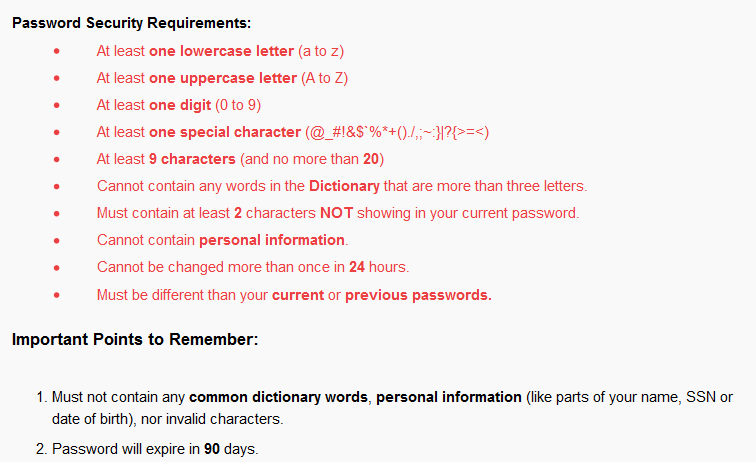
- Choose a long password, ideally at least 12 characters.
- Don’t use common words or phrases.
- Try to include at least one symbol.
- Do not reuse any password you have previously used.
Once you’ve finished creating the master password, you’ll be prompted to continue in the app, or install the browser extension if you’re on a computer. Bitwarden supports nearly every browser, including Chrome, Safari, Microsoft Edge, Firefox, Opera, Brave, among others. On macOS, you’ll also need the desktop app installed if you want to use the Safari extension.
3. Enabling Autofill & setting a PIN
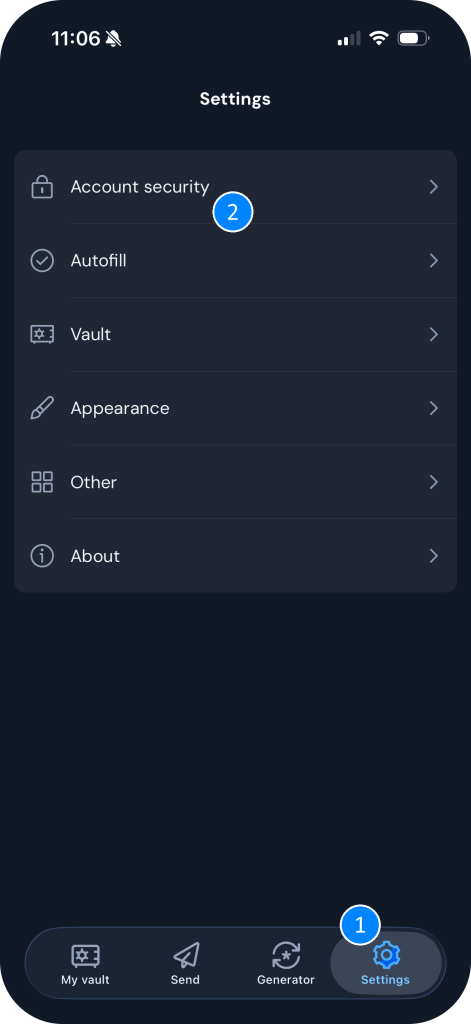
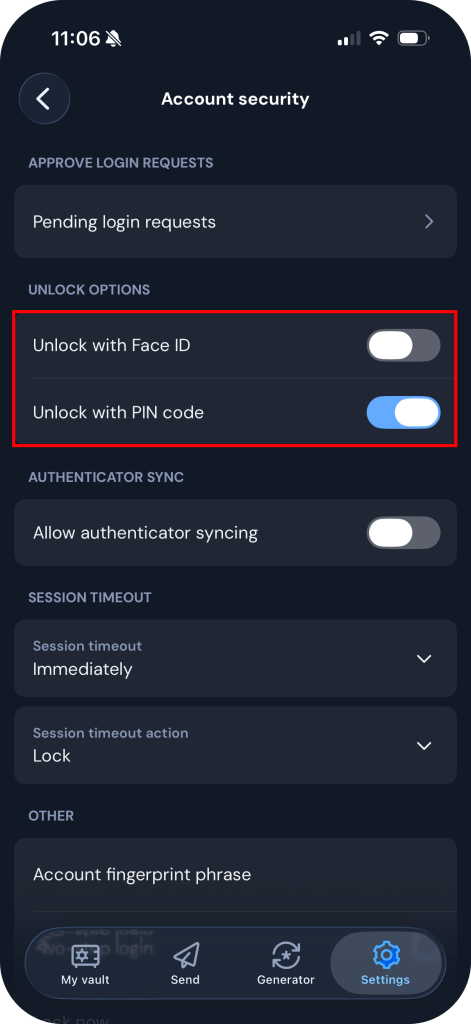
Whenever you install Bitwarden on a new device, you’ll need to give it permission to fill passwords on other apps and websites, and set a PIN for faster vault login. This process is fairly similar between iOS and Android devices. Click the dropdown menus below following your device.
Enabling Autofill:
iOS
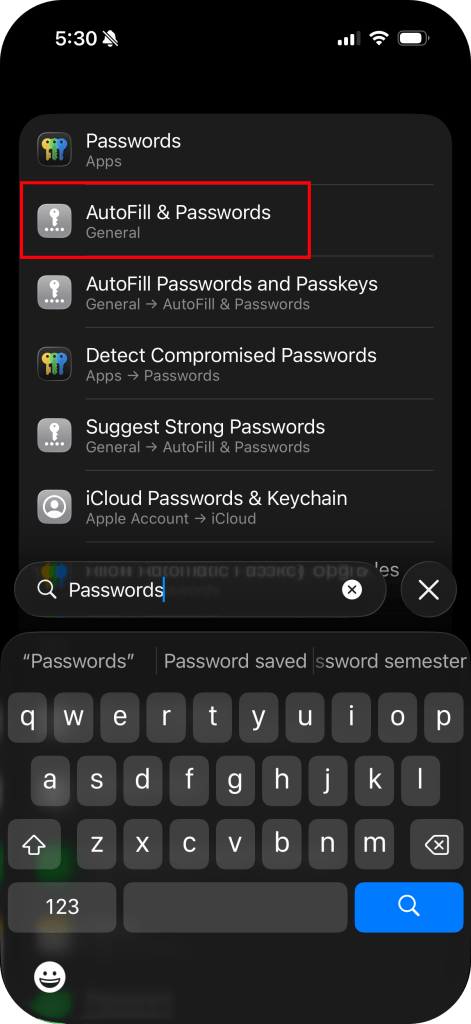
- Make sure you’re signed into Bitwarden first. Then, close the Bitwarden app, and open the iOS Settings app.
- Search for “Passwords”, and tap “AutoFill & Passwords”
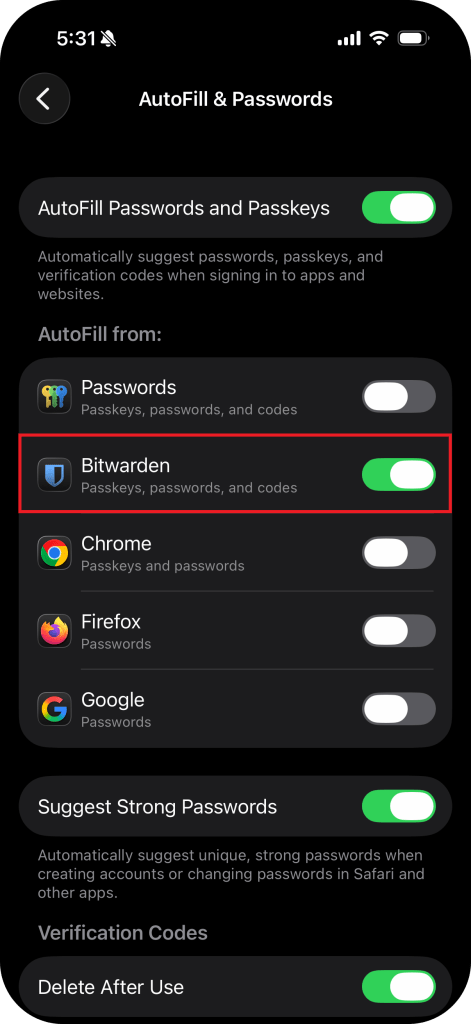
- Enable Bitwarden, and disable all other providers. You can still access and export your data from them later.
Android
- Make sure you’re signed into Bitwarden first.
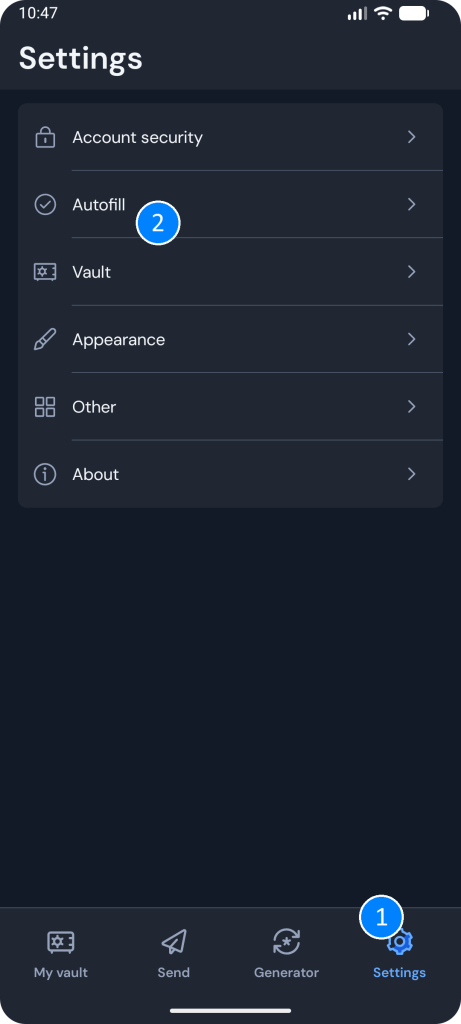
- Click “Settings” in the bottom-right corner of the app.
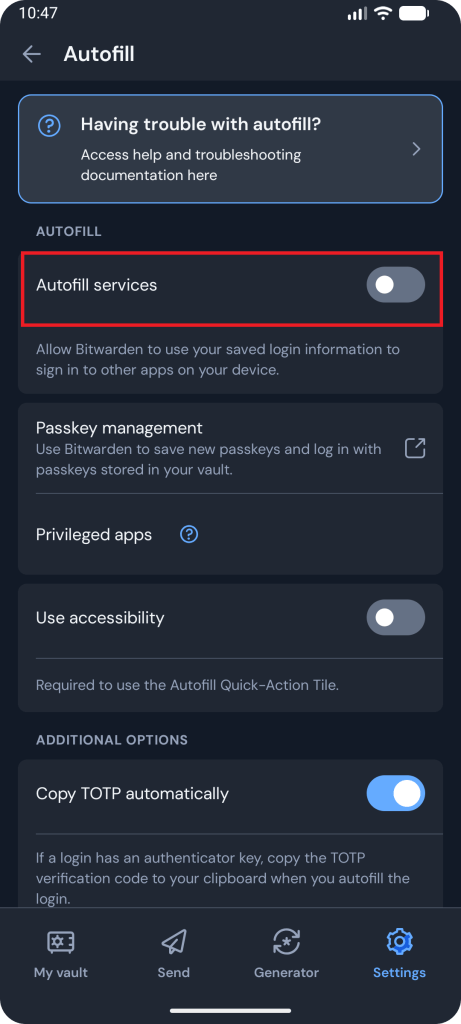
- Select “Autofill”, and tap “Enable autofill services”
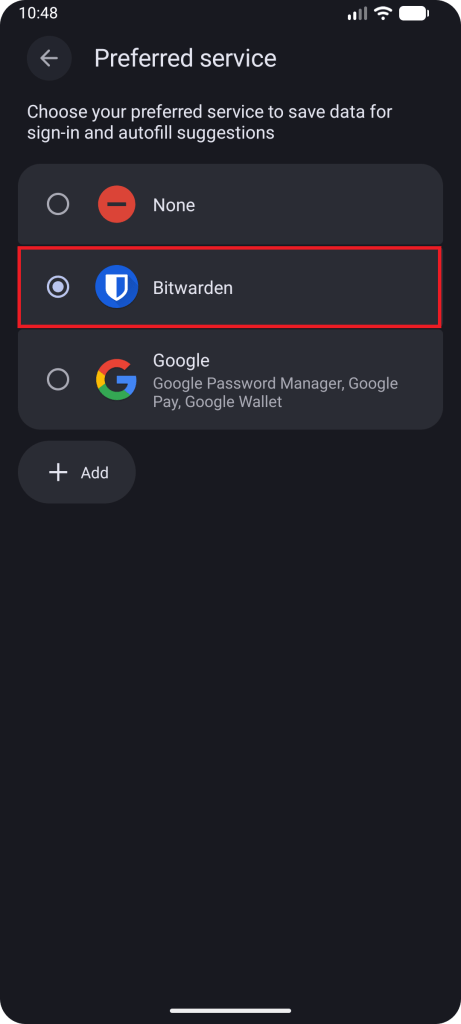
- Enable Bitwarden as an autofill provider, and disable all other providers. You can still access and export your data from them later.
- Depending on your device, the last step may look slightly different.
Mac/PC
Bitwarden’s extensions are identical between all web browsers. If you’re on a Mac and are using Safari, you’ll need the desktop app to enable the Safari extension. If you’re using any other browser, you can install it directly from your browser’s add-on store. Bitwarden should have provided you with a download link after your account setup, but if not, revisit the download link from earlier. You don’t need the desktop app for normal use otherwise, unless for biometric integration with your browser.
- Pin the extension to your browser toolbar if it isn’t already, for easy access.
- Click the Bitwarden icon and sign in.
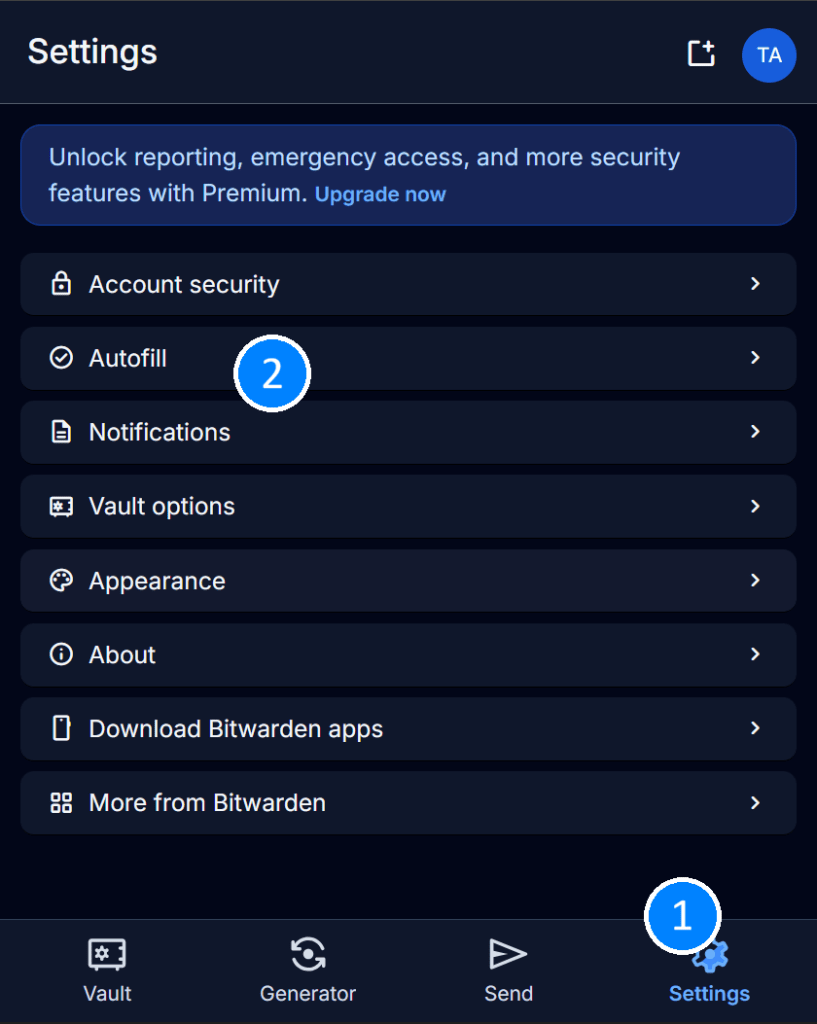
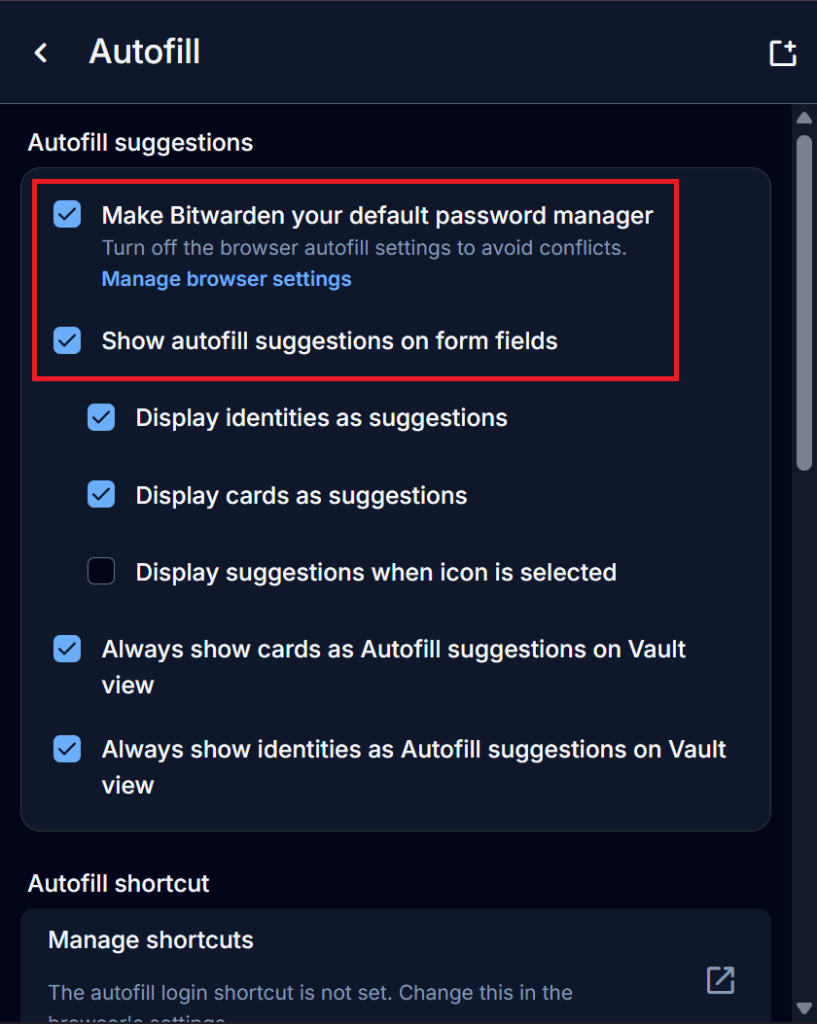
- Click Settings → Autofill.
- Check “Make Bitwarden your default password manager”, and “Show autofill suggestions on form fields”.
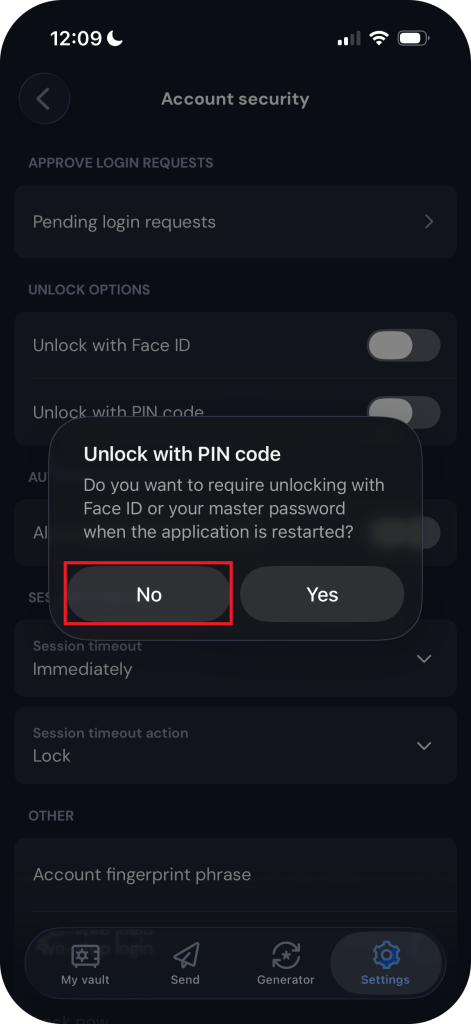
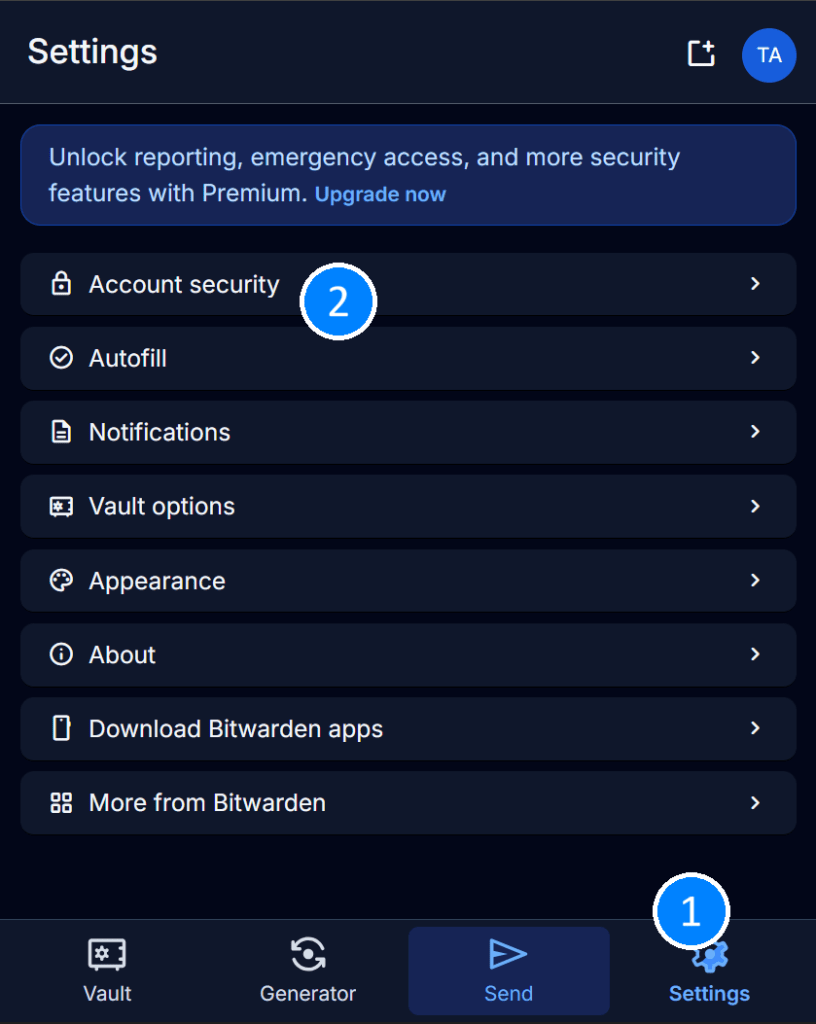
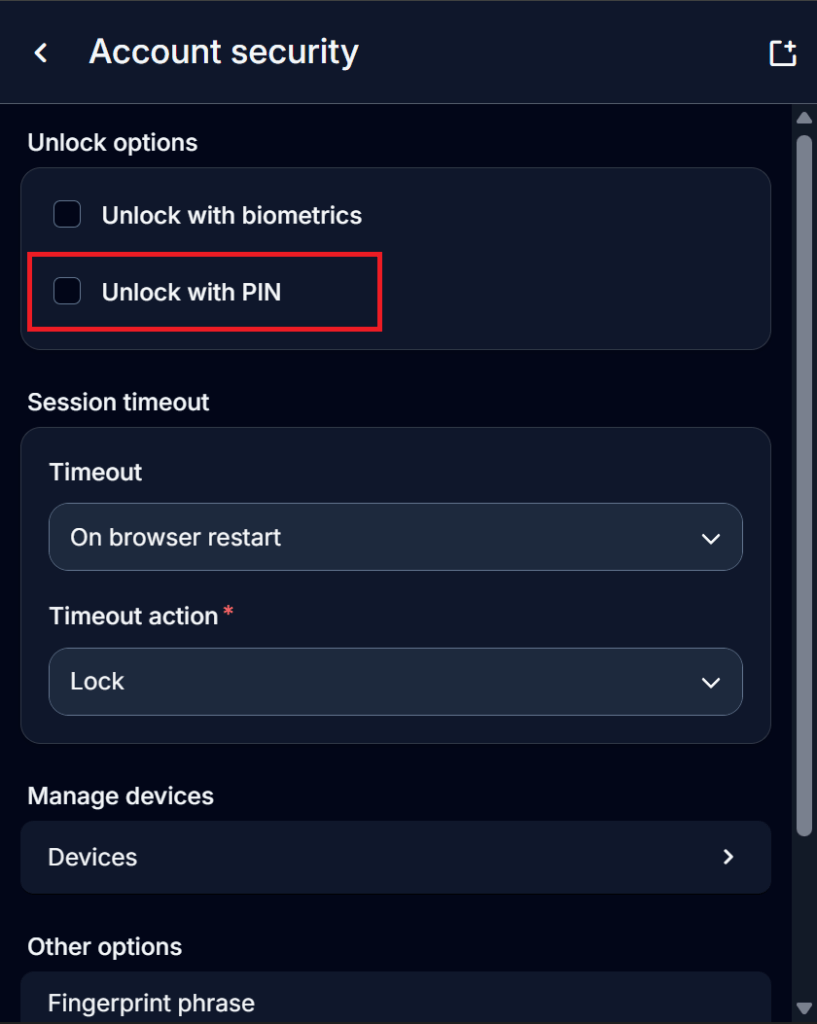
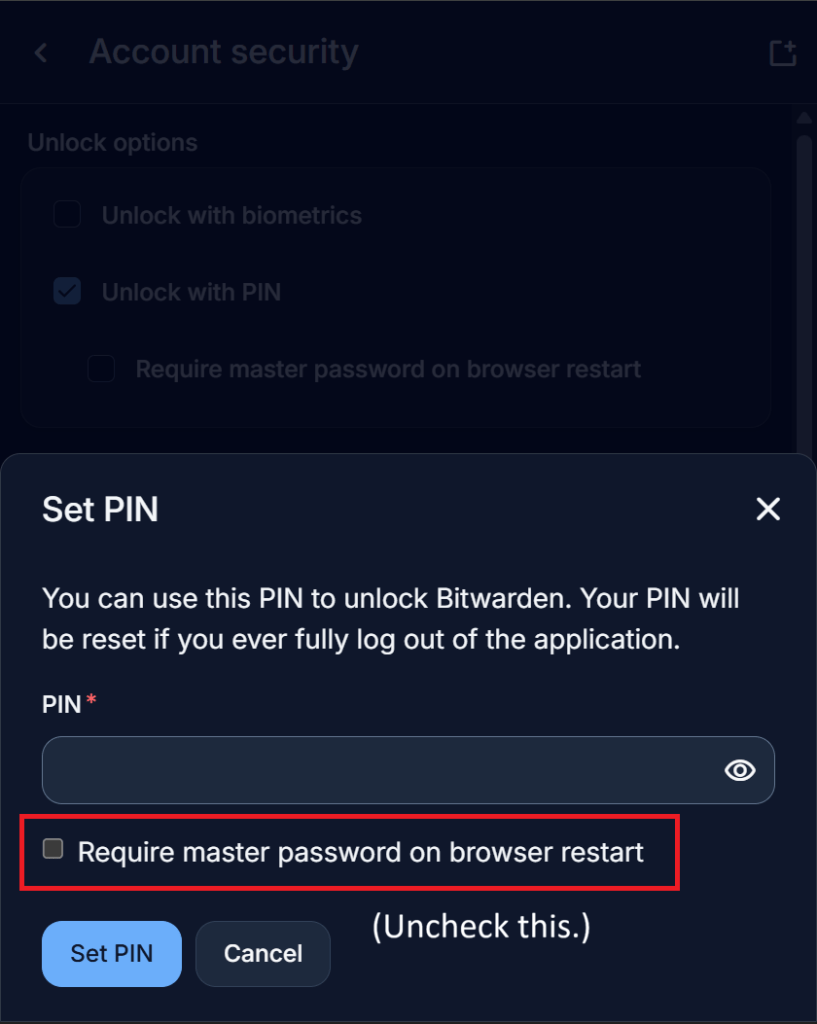
After you’ve enabled autofill, you should set up a PIN or biometrics to log into your vault faster. These steps are the same across all of Bitwarden’s apps. A PIN is more secure than biometrics because it guards against situations where your device’s internal keychain may become compromised, but biometrics are more convenient. For most situations, biometrics are completely fine, but if you want the best security possible, a 6-digit PIN isn’t a bad idea.
Enabling PIN/Biometrics:
⚠️ Important: When asked “Would you like to require unlocking with the master password when the application is restarted?” click no.
iOS/Android
Mac/PC
The below screenshots show the browser extension.
4. Import your existing passwords
If you’ve already been saving your passwords directly to your device or to a different password manager, this step guides you through transferring them to Bitwarden. If this doesn’t apply to you, click here to skip to the next step and learn how to add them manually. The exact transfer method differs depending on the app you were using. I’ll cover Apple and Google’s most common methods. Select the dropdown that most closely matches your setup. If you’re using something else, you’ll have to find a guide for it online.
On Android devices, the most common storage location is Google Chrome. However, some manufacturers provide their own password apps, like Samsung and Samsung Pass for example. Transferring passwords from these apps requires significantly more effort and is beyond the scope of this article, even requiring the use of GitHub command-line tools to convert files. Because of this, I won’t provide instructions for them at this time. If you do a web search, there are guides available.
Apple iOS with Safari
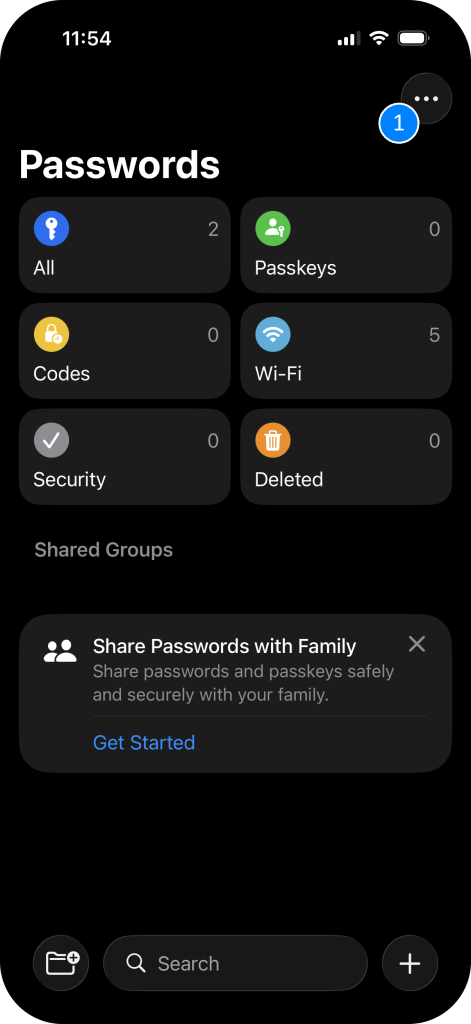
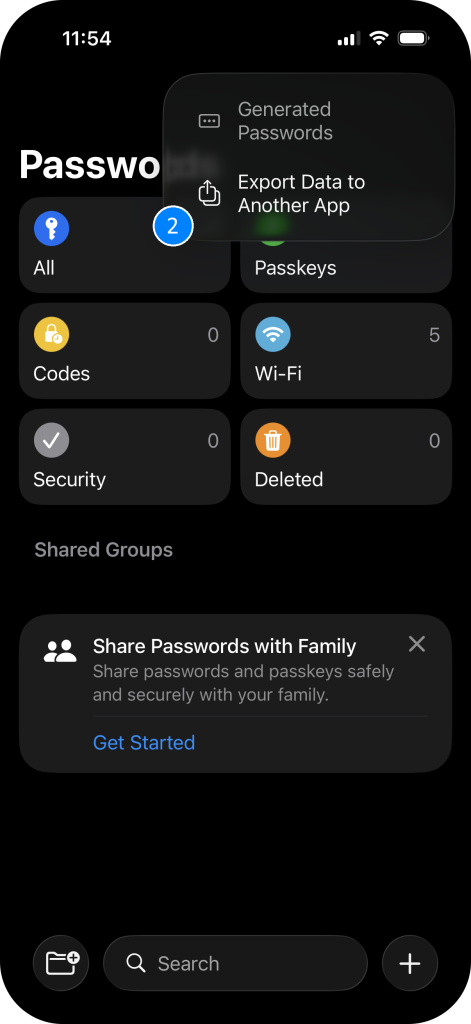
This process can be easily completed from an iPhone, iPad, or Mac. I’ll cover the iPhone steps here. Screenshots are shown below the steps.
- Search for and open the “Passwords” app on your iPhone. If you don’t have it, download it from the App Store. It’s an official Apple app.
- Click the back arrow until you’re on the main screen showing a grid of categories.
- Click the [. . .] at the top right, and select “Export Data to Another App”.
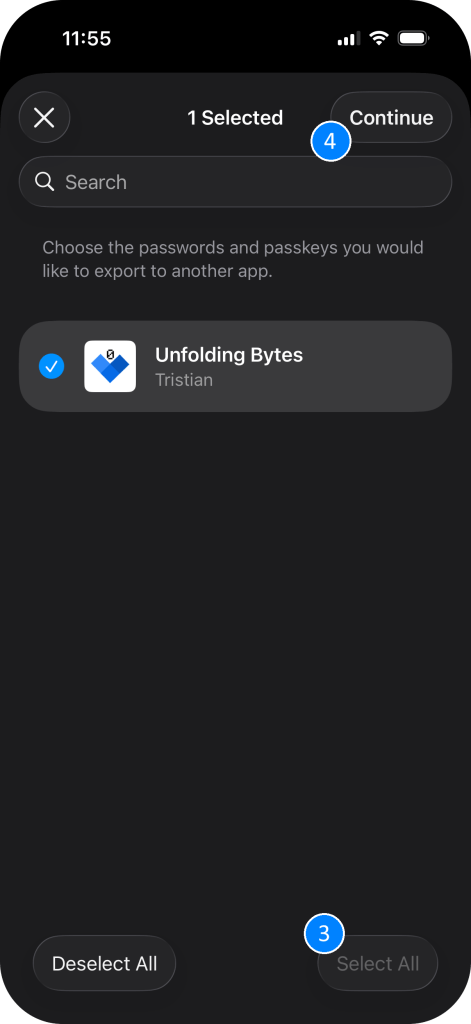
- Tap “Select All”, then “Continue”. Select Bitwarden as the destination, and confirm the transfer.
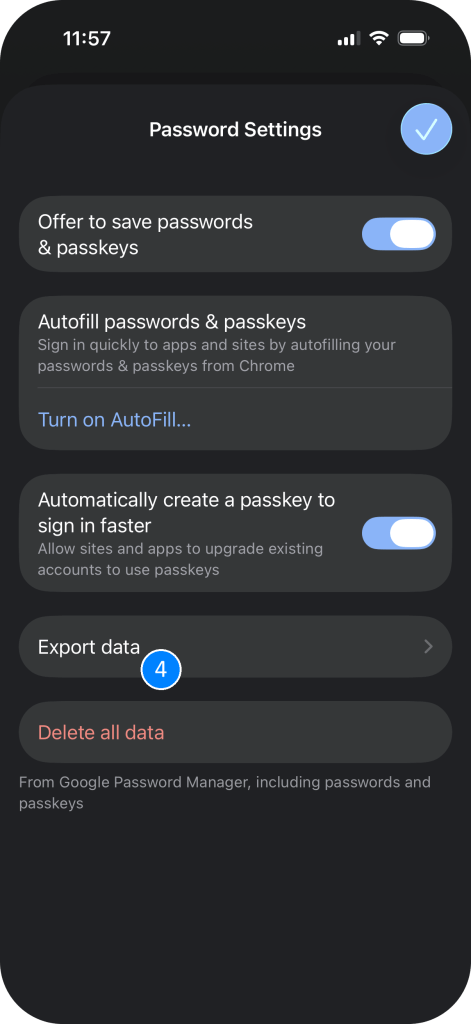
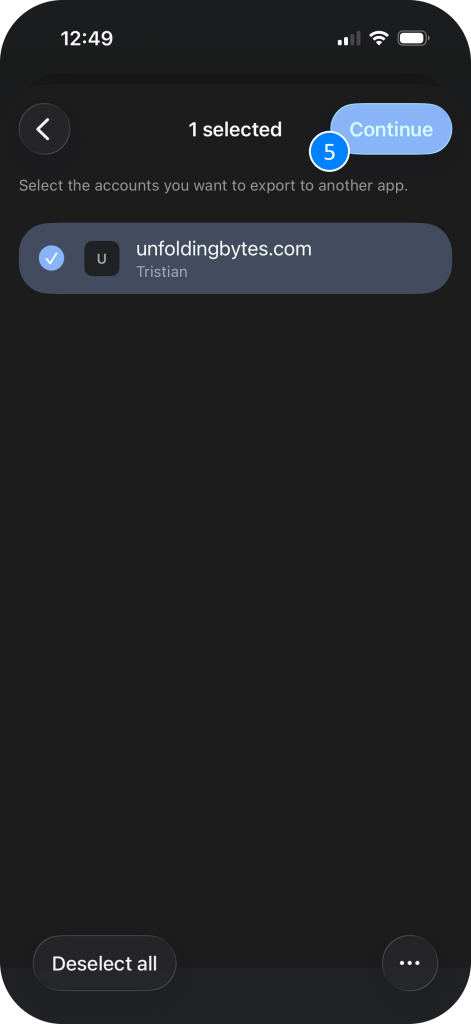
Apple iOS with Google Chrome
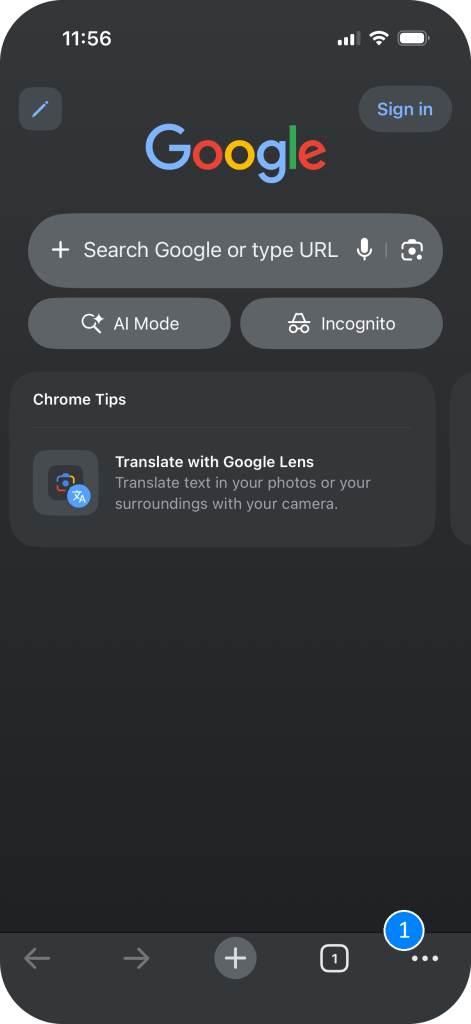
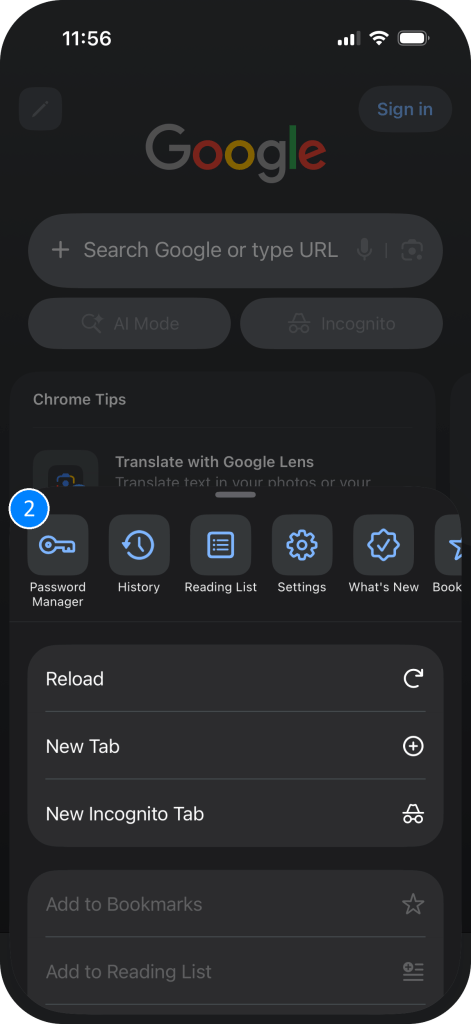
- In Chrome, tap the [. . .] at the bottom right, and open Password Manager.
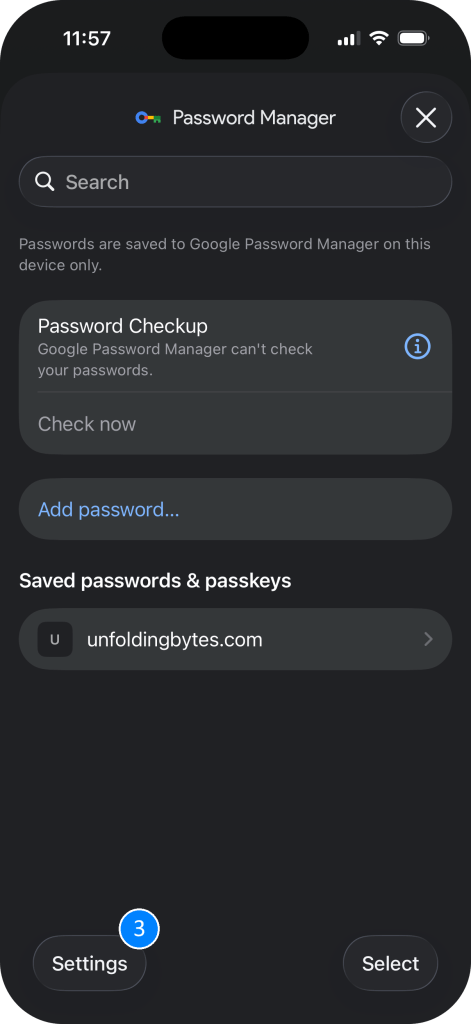
- Tap “Settings”, Export data, then Continue.
- Select Continue once more, and choose Bitwarden as the destination.
Android Devices
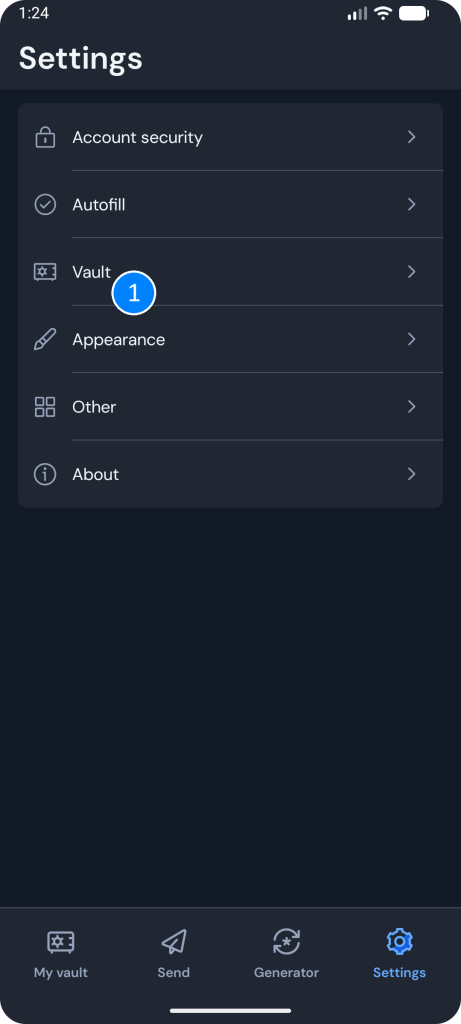
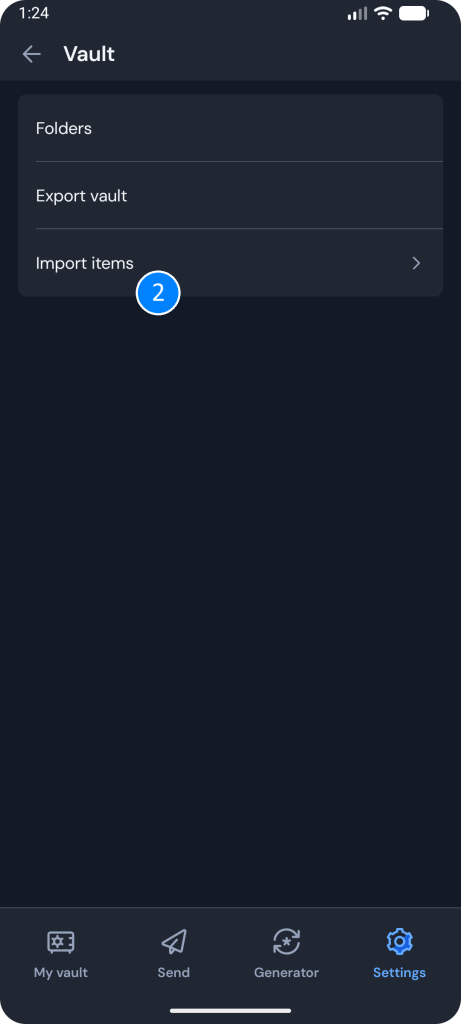
These steps cover the process from an Android phone with Google’s services installed. If your app doesn’t support importing to Bitwarden following these instructions, you’ll need to consult your existing password app’s provider to determine how to export them.
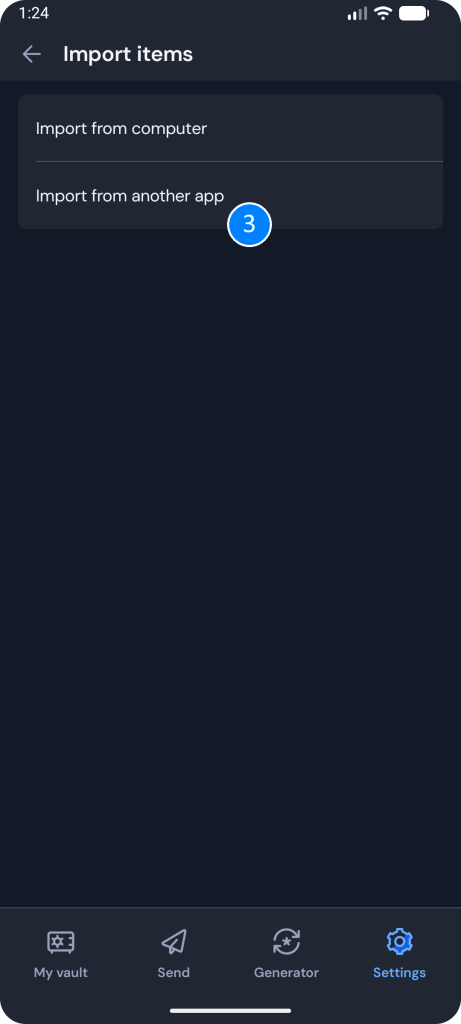
- In Bitwarden, navigate to Settings → Vault → Import items → Import from another app.
- Authenticate and confirm the export of all your items.
Computer Instructions
⚠️ Important: These steps are riskier because they involve temporarily converting your passwords to an unencrypted file. If you’re signed into your browser on an iOS or Android device, it’s best to complete the process there. If you’re using Safari, complete the process from your iPhone instead. If you don’t have an iPhone or iPad, click here.
- Open a new browser tab, and copy and paste this text into the top of your browser bar, not the middle search box:
- Chrome: chrome://password-manager/settings
- Edge: edge://wallet/passwords
- Next to “Export passwords”, click “Download file”.
- Click or follow this address on your computer: https://vault.bitwarden.com/#/tools/import, and sign in to Bitwarden.
- If after signing in, you’re not brought to the import screen, click Tools on the left, and select Import.
- Select the correct file format, and then choose the file you exported.
- After you’ve confirmed the import was successful and your data is in Bitwarden, permanently delete the file you exported. Do NOT leave it on your computer.
Important: Your passwords will not be deleted from the app you’re transferring them from. It’s bad practice to store your passwords in multiple locations, so after you’ve become accustomed to Bitwarden and are sure it’s working properly, delete your passwords from the old location. This is different from deleting the exported file.
5. Creating and adding new passwords/logins
To create a new login item in Bitwarden, click the “+” or “New” icon, select Login, and fill out the fields. Here’s what they each mean:
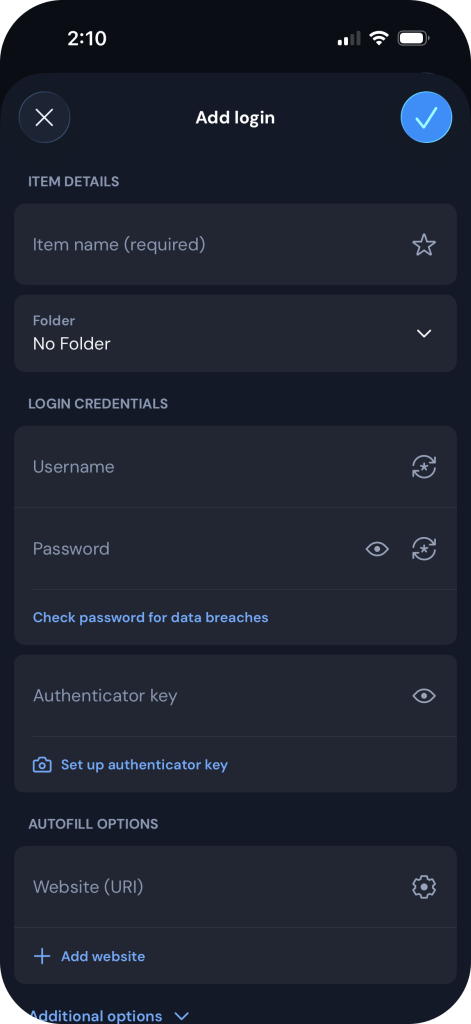
- Item name: What the item will be displayed as in your vault. Should be the name of the website or app. You can search for it by this later.
- Username: Your username or email for the website, whichever you signed up with, or what the site asks for when logging in.
- Password: Your password. The rotating icon next to this lets you generate a custom secure password for that site, and have it automatically saved.
- Website URI: The address of the website. For Amazon, you would type amazon.com. For Netflix, netflix.com. This is required for Bitwarden to associate it with the correct service.
Those are all the required fields. These fields are optional:
- Folder: Organize and group your passwords by folders you create.
- Authenticator key: Support for storing 2-Factor Authentication (2FA) codes inside of Bitwarden. (Note, I don’t recommend this. The why is explained further in the article.)
Depending on the app and device you’re using, Bitwarden should automatically prompt to save new passwords you create, as soon as you create or change them on the website or app. If it doesn’t, you can use the above instructions to manually add or edit them.
6. Testing & day-to-day use
So, now that you’ve completed the setup, what does using Bitwarden actually look like?
Try opening one of your apps or websites you have a password saved for, signing out, and signing back in. Bitwarden should pop-up with your saved credentials, or if you click the “Passwords” button above your keyboard, it will provide the option to fill them.
If it didn’t work, open the Bitwarden app and make sure the item is there, and that the URI field when editing the item is set to the website address, as explained in step 5 above, and that you’ve enabled autofill correctly and disabled your old password service, if any.
Congratulations! You’re now more organized and secure. As long as you stay active in keeping your vault updated whenever you make a password change, you’ll have a robust, automated solution to rule them all.
Some last minute tips…
Should I store my 2FA codes in Bitwarden as well?
My answer to this is no, because if your vault ever were to become compromised, you would still be protected since your 2FA codes are stored elsewhere. If you stored them in Bitwarden, you would not. Bitwarden has a separate app called Bitwarden Authenticator that’s completely different from the main one, and can be used for storing these codes. They’re backed up with your scheduled device backups. Google Authenticator is likely the most popular one, however it has been caught not properly encrypting your TOTP secrets when syncing them with the cloud. Other apps offer more secure backup solutions. Like password managers, there are numerous 2FA storage apps other than Bitwarden all with different perks. Maybe I’ll do a 2FA method comparison and walkthrough in the future.
Storing your 2FA codes in the same place you store your passwords essentially defeats the point of 2FA in the first place, so don’t do it, however tempting the convenience may be. You’ll thank yourself later.
How can I generate passwords using Bitwarden?
In addition to storing passwords, Bitwarden can generate new randomized passwords for you. The easiest way to do this is when adding a new login item from the app, but you can also use the generate tab at the bottom of the app to access this tool. You can customize the options to configure what the password looks like. Just make sure to save it shortly after!
How can I ensure my vault is never compromised?
You never want anyone other than you to have access to your vault. To keep it as hardened as possible…
- Use a separate PIN instead of biometric access. Do not re-use any previous PIN, or make it the same as your device PIN.
- Set a short vault lock timeout so someone near your computer or phone can’t snatch it and access the vault. This can be found under Bitwarden Settings → Account security. The shorter the better, but it all depends how much convenience you want to sacrifice. Do not set the vault timeout to never. This bypasses integral security layers.
- Never sign into your vault on a public or shared computer, and instead use the mobile app to glance at your passwords if you need to.
- Never install browser extensions from website pop-ups or advertisements telling you to do so. Only ever install browser extensions that you manually sought out. That’s one way people had their Bitwarden accounts hacked, by tricking them into entering their master password on an app that wasn’t Bitwarden.
- Mobile phones rarely ever become compromised with malware, especially iOS devices. If you’re on Windows, check out one of my other security guides. Mac users don’t need to worry about this as much. Realistically, if you’ve followed all the other steps correctly, even if you’re device becomes infected with malware, your vault will still be safe. Most infostealer malware doesn’t target third-party password managers, and keyloggers would only capture your PIN, which is local to your device and can’t be used for remote access. Unencrypted data is never written to the disk, and memory scraping attacks are even rarer.
Wrapping Up
Online security is a constant tug-of-war between malicious actors and uneducated consumers, and the only way to alter that course is to learn the attack vectors so that you understand the defenses. By migrating your passwords away from an easy access point, you’ve already put yourself in a position that makes you not worth a typical hacker’s time anymore. You’re right. No one’s trying to hack your Instagram account. They’re just casting as wide of a net as they can, and your only job is to not get caught in it.
I hope you found this article useful! If you ever have any security questions in the future, it never hurts to search for answers on your own, too. There are many online guides covering various privacy and security topics that you can easily find.
If you know someone who would find this information useful, please send it their way. It’s the best way to support my work and encourage me to continue making this type of content. If there are specific topics you’d like me to cover, I’m always open to feedback.
Support independent, ad-free publishing