

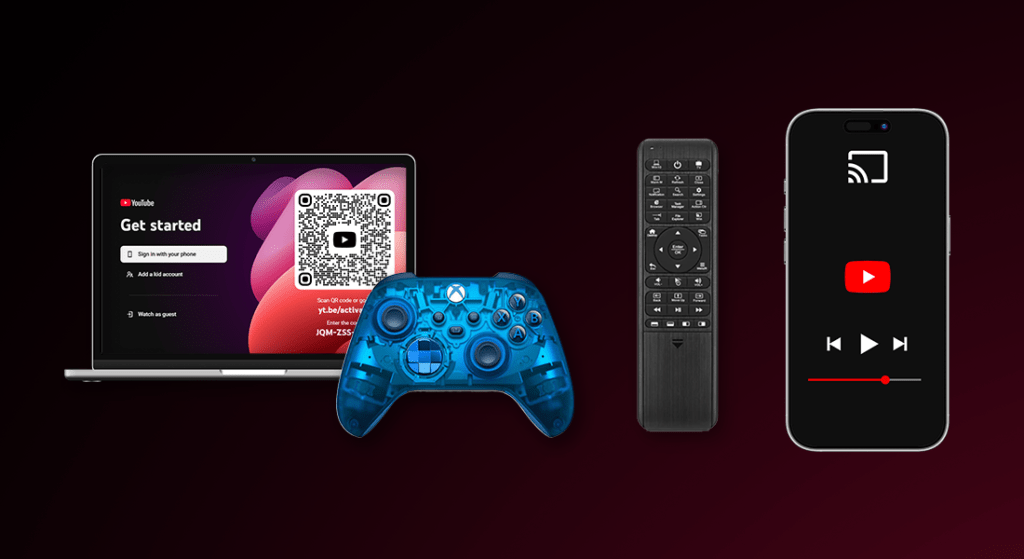
This guide is about using the regular YouTube service with a TV-style UI on your computer. For YouTube TV, the app with live TV and cable channels, go here: https://tv.youtube.com/welcome/
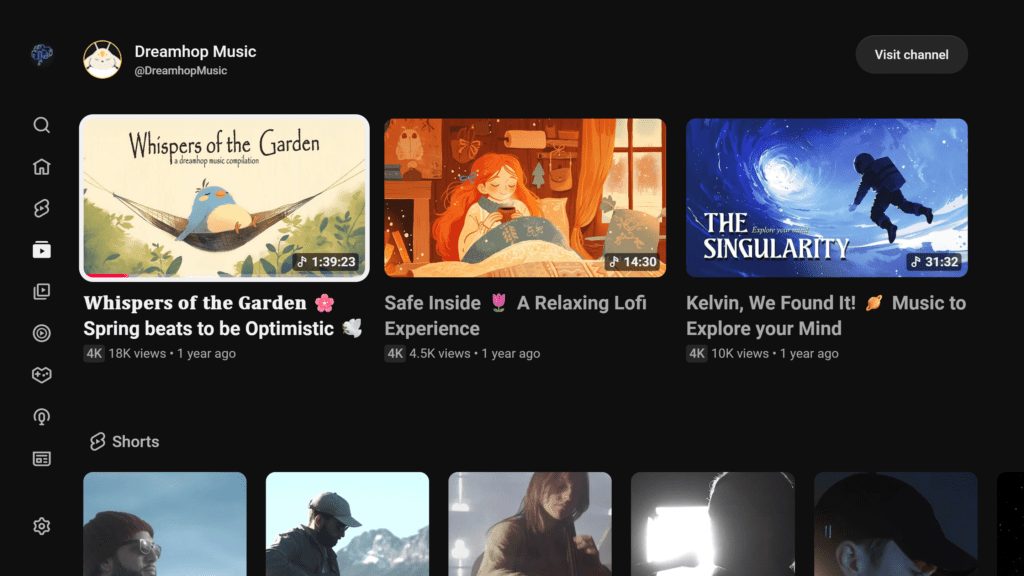
If you’ve ever used a Smart TV or game console, you’re likely familiar with this screen. It’s YouTube’s dedicated TV interface, and it takes the desktop version of YouTube and morphs it into an immersive app that can be easily navigated with a TV remote or game controller. It’s initial debut was in late 2010, and it was one of several attempts to make the platform more accessible no matter where people were. Whether you used an iPod touch, a Nintendo 3DS, or even a Blu-ray player, chances are Google’s at least attempted to develop another app specifically for it.
Something you may not have known, though, is that the YouTube TV app isn’t actually an app at all. Developing an entirely new app every time a hot new tech product hit the door just wasn’t exactly the most optimal use of their development time, but with the limitations of processing power and HTML features back then, it was kind of necessary if they wanted to maximize the amount of people on their platform every day. Whenever you open the app, it actually just loads a fullscreen webpage on your TV, and you can load that very same page on practically any device with a browser.
How does it work?
When you launch the YouTube TV app, it launches a small shell (which in this case, just means a very minimal, single-purpose web browser) that sets a special user-agent string, then opens youtube.com/tv in a fullscreen page. It then decides which buttons to display and listen for, depending on your device. If you have a voice remote, it also must respond to commands sent by your TV to launch directly into search or video pages from internal apps.
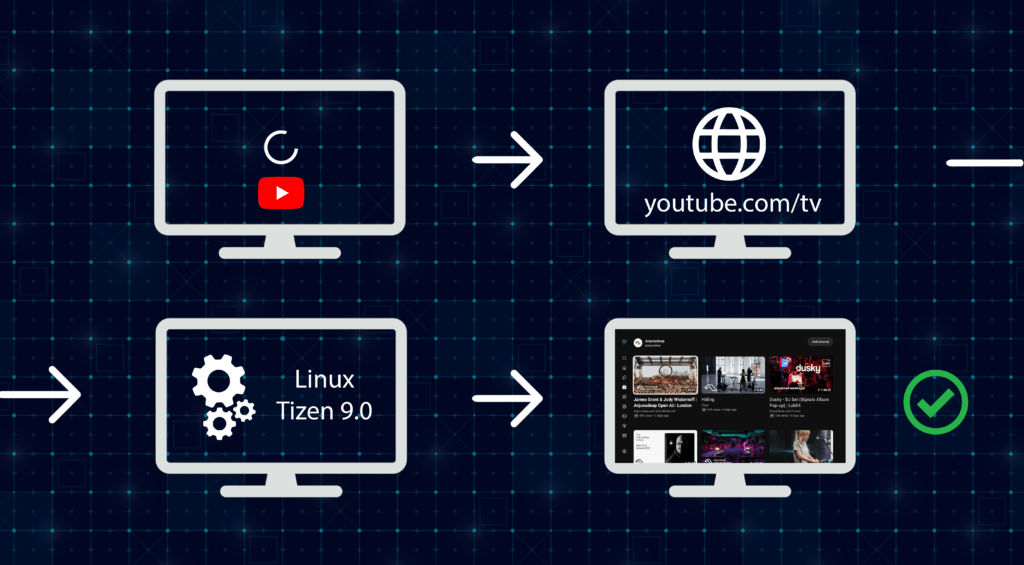
For a while, this interface was even officially supported by Google on laptops, being given the name YouTube Leanback, and advertised as a hands-free way to binge-watch your favorite creators. Unfortunately, after its discontinuation in 2019, any attempt to visit this site now will be met with an error message redirecting you to the normal YouTube. Fortunately, it’s pretty trivial to bypass, as it’s really only checking one thing: your user agent.
A user agent is a small piece of text that’s sent along with your web traffic, and it tells the destination website what kind of device you’re on, which browser you’re using, and if they’re up to date. When YouTube sees you’re using Chrome on a Mac, or Opera on a Windows PC, they kick you right out. But if they detect an LG Smart TV or an Xbox One, they allow you through, and optimize the on-screen controls based on which device type is reported. If we can change the device type reported to YouTube, we can trick it into letting us load any version we want.
How can I do it?
It’s easier than you think! There are two ways. The hack way, and the fully-featured way. Here’s how you can DIY it, and then I’ll show you the one-click solution.
1. Getting a User Agent
Google “smart tv user agent” and find a common one, typically from a Samsung or LG TV. Here’s an example:
Mozilla/5.0 (SMART-TV; Linux; Tizen 9.0) AppleWebKit/537.36 (KHTML, like Gecko) SamsungBrowser/8.0 Chrome/120.0.6099.5 TV Safari/537.362. Set the User Agent
This differs depending on your browser. Click below for the steps.
Chrome/Edge/Brave/Opera
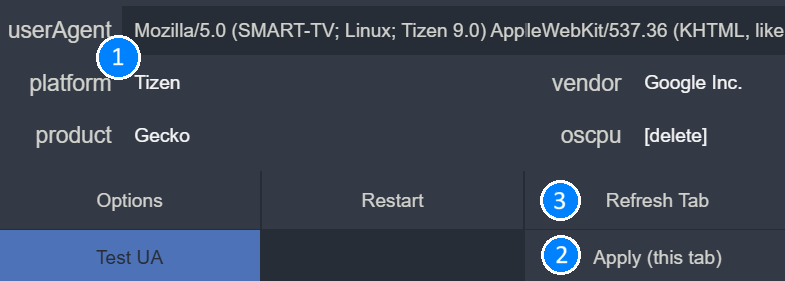
- Find and install a user-agent switcher on the Chrome Web Store that allows custom strings. Here’s one.
- Load https://youtube.com/tv in your browser, and before the timer runs out:
- Click the new extension icon.
- Paste your user agent string into the bottom box.
- Click “Apply (this tab)”, then “Refresh”.
- The TV experience should load!
Advanced Note
It’s also possible to set the user agent without an extension, via the network conditions tab in DevTools, or via the --user-agent application parameter. However, I didn’t cover these methods since they’re a bit more involved.
Firefox
- Visit https://youtube.com, and press Ctrl+Shift+M (Or Cmd+Option+M) to enter responsive design mode.
- You can then paste your user agent into the top-right bar labeled “UA”, press enter, and refresh the page.
- While keeping responsive design mode open, change the URL to https://youtube.com/tv.
- The TV experience should load!
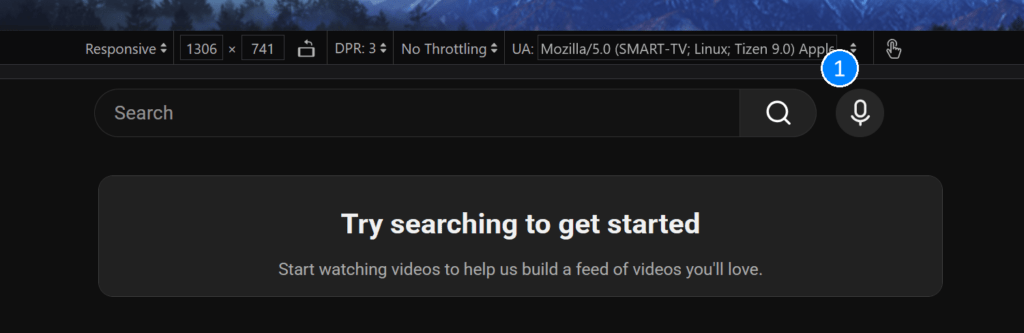
3. Access the Site
Google now thinks your device is a Smart TV instead of a computer, and you’re able to access the site!
Is there an easier way?
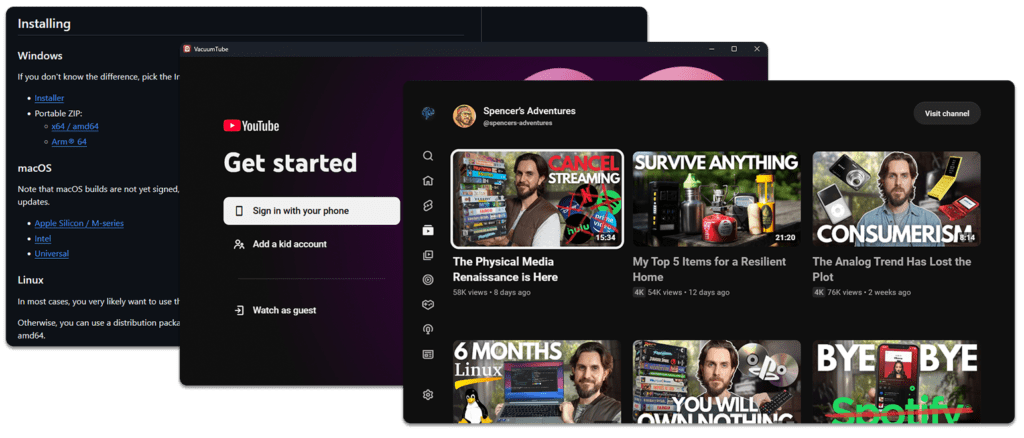
I wouldn’t be writing this if there wasn’t! Recently, a team of passionate people have put together an app that bundles the above tweaks, along with a whole host of others, into a single app called VacuumTube. It’s available for Windows, macOS, and Linux (you can even run it on a Steam Deck!), and it receives regular updates to keep working with all the changes YouTube makes. Getting started is as easy as visiting the download page, installing it, and signing into your YouTube account. Check this out…
- Visit this download page, and install the correct build for your device.
- Open the app, and sign into your YouTube account.
- Enjoy! You can enable fullscreen mode by pressing F11, or by navigating to the settings, selecting VacuumTube Settings, and enabling it there.
Why would I want to do this?
Because it’s cool! But there are also many practical reasons. Aside from the fact of Google supporting and advertising it years ago, it can genuinely make things easier depending on what you’re trying to do.
- Use it with a laptop hooked up to a projector, TV, or other display. If your display isn’t smart, this is one way of making it be. Your computer can run this app, and the TV just acts as the display. If you need a way to control it, you can use any old wireless game controller, or even pick up a dedicated PC remote, like the W10 Gyro from Pepper Labs.
- Use your phone as a remote control. Combined with the above method, you can use your phone to beam videos to it — the same way you would with an actual TV. Just open the YouTube app on your phone and cast to your computer. As long as they’re both on the same Wi-Fi network, it’ll work.
- Use it on a Steam Deck or other controller-focused device. Since Steam doesn’t have an official YouTube app, navigating the website with a controller can be a bit of a hassle. Luckily, VacuumTube is also available on Flathub, so you’ll find it on the Discover store and can add it as a non-Steam game to your library.
- Stream it to a VR headset. How many people will do this one? Haha. But if you have a virtual reality device, you can use an app like Bigscreen VR to project your computer’s display into it and invite people to watch with you, or just watch by yourself.
- Just get comfy and have a keyboard-first experience. This was Google’s original intent behind porting the feature to computers. Just an easy way to access YouTube when you’re, well, leaned back. It was created when YouTube’s site looked more like this, and it helped enlarge fonts and reduce mental overload when you were just trying to have a late-night binge session.
Why did Google discontinue it?
While Google never came out and made a blunt statement, inside sources suggest they were frustrated by third-party device manufacturers creating their own YouTube apps without licensing Google’s official one. Google wants to be in charge of the full stack, and if apps they can’t control gain enough momentum from companies, they’ll eventually have to step in and pull the plug.
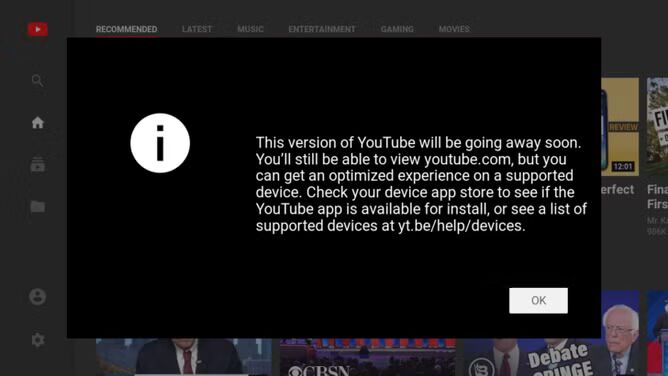
So were they trying to prevent hobbyist individuals from running it on their PCs? Probably not. They’re really after large-scale manufacturers providing unauthorized code around their services.
Other Fun Facts
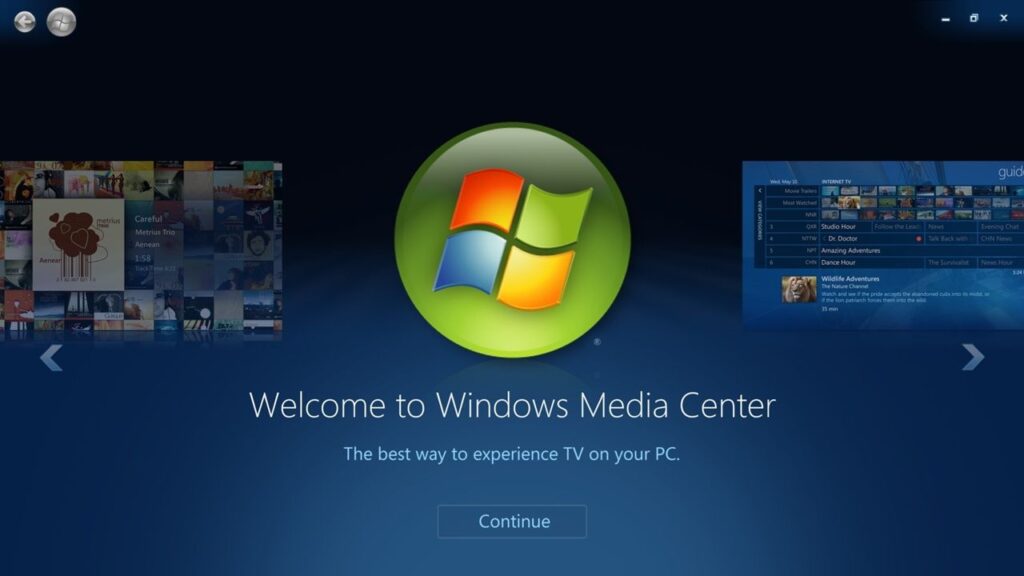
When you have a computer connected to a TV acting as a media device like this, it’s called a Home Theater PC. They were more common before Smart TVs were as popular as they are now, and Microsoft used to make apps to support this use-case too, like the discontinued Windows Media Center. If you wanted to do something clever, like have Windows automatically open a specific app fullscreen upon boot up or login, without even showing the desktop first, it’s actually still possible! I’ll have a guide coming out on that in the future.
Most smart boxes that connect to your TV today, like a Fire Stick or Xfinity X1, are actually just computers running Linux. The device manufacturers just programmed custom software to run on top of it, so it’s not obvious at first glance. Yup, it’s really just a computer underneath!
That’s basically it.
Hopefully you found this interesting! How many other apps you use do you think are secretly websites in disguise? It’s probably more than you think. Discord, Spotify, Slack, and Microsoft Teams are also all examples of “apps” that are just websites behind the scenes.
If you want to support the developers behind VacuumTube, share their project (or this article) with someone who might find it cool.
That’s all I’ve got! For more like this, keep scrolling or check out my Geek Central page, where I unwrap more perplexing discoveries like this.
Support independent, ad-free publishing