

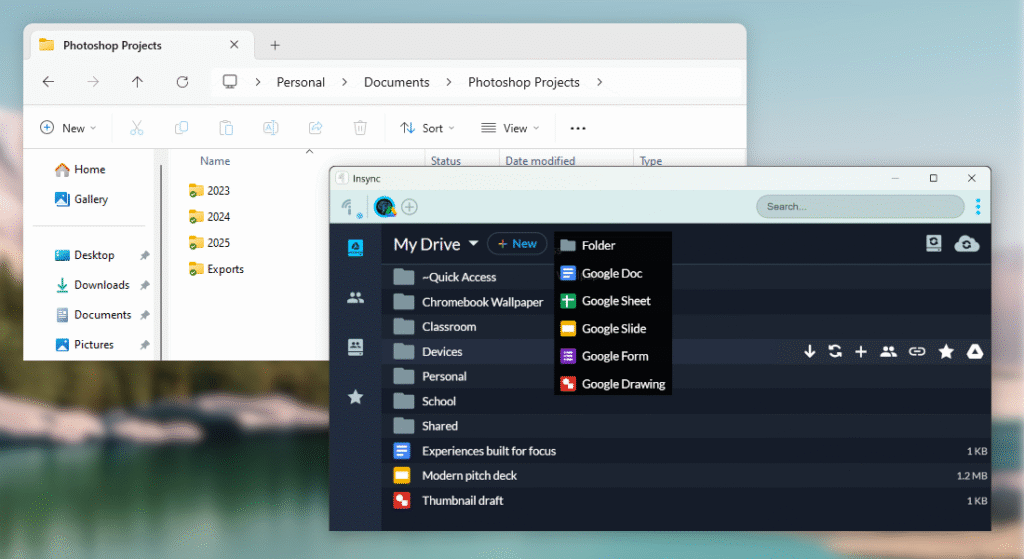
I’ve been using Google’s file storage service in some capacity dating back to my earliest years of elementary school, even taking the time to organize all my stuff whilst learning everything that I could about it along the way. I’m talking about Drive of course, one of the most well-known and feature-rich cloud storage providers out there. Like with most services, the reason for its widespread popularity is largely due to its accessibility. It leases its users with a whopping 15 gigabytes of “free” cloud storage, which is a steal compared to the measly 5 you get with Microsoft’s OneDrive, or Apple’s iCloud. It’s also backed by, well, Google, giving it a feeling of trustworthiness and security, even if that’s not 100% on point. But we’re not here to compare it against other providers, rather to talk about one thing in particular. Their desktop apps for Windows and Mac. They’re responsible for bridging the gap between working online and off, or between the cloud and your computer. On the cloud side, Drive is very flexible. They have the largest repository of third-party plugins you can install via the Google Workspace Marketplace that can make productivity zoom, and their collaborative features have also made competing products like Microsoft Office redundant for most people. On desktop, though, annoyances and imperfection plague an otherwise great addition to an already competitive product. Their desktop app just feels so rigid compared to what you can get from smaller, lesser-known providers. Any great file storage provider should have an equally great desktop app, otherwise you’ll be stuck juggling browser tabs and have no way to access your data outside of your provider’s website. Unfortunately, Google’s web-first approach to software really hinders that integral desktop component.
Many people are left in a tough position. They could bounce around to different providers, comparing their feature sets, pricing, and platform support, moving their files to and fro each one. They could even opt for a more privacy-friendly alternative, like MEGA, Proton Drive, or even Nextcloud. Unfortunately, not only is that a disorienting and time-consuming endeavor, it might not even be their decision. Whether you like it or not, Google Drive is everywhere. Your friends use it, your workplace uses it, and everyone online is sharing links with it. While moving your entire life onto an end-to-end encrypted cloud storage solution might be your cup of tea, for many people, it’s simply not a feasible solution.
After years with a subpar desktop experience for Google Drive, the company had pushed out an update, riddling the client with even more bugs, poor design choices, and optimization issues. It was an entire redesign, moving regular consumers onto the organization-focused Drive File Stream version of the software. They then proceeded to block the older desktop app from connecting to their servers, and designed this new one in a way to ensure downgrading it was impossible. I had no way of sticking with the older, more stable version, and my only option was to send feedback after feedback into the void. After 3 months of trying to gaslight myself into thinking I must not be using it right, I opened up my Drive to find several of my backed up files replaced by empty, corrupted ones, and the desktop app flooded with unknown errors. This was my call to find a better way to keep my workflow moving, or I would be prying all my data from Google and never looking back.
Where Drive for Desktop falls short
I spend a substantial amount of my time analyzing, complimenting, and critiquing software of all types. Partly because I help develop it, and also since I care about quality user experiences a little more than your typical engineer. Before you continue, though, it’s important that you understand the intent behind what you’re reading. I have no relation to Google, nor to the alternative desktop client I’ll be comparing it to. I wrote this article with the intent to inform interested people about a compelling alternative to a popular piece of software, and (hopefully) demonstrate that large corporations shouldn’t be blindly used as a benchmark for greatness. When a team of people (or even a single talented one) use software and computer programming to create great user experiences, and put those experiences at the forefront of their design process, I believe it deserves to be mentioned, especially if its publicity is rather low, since this type of engineering continues to diminish and is seldomly rewarded. As an aspiring engineer myself, I also feel compelled to give credit to the things that have inspired me and to have a reference to point to when something could be done better. Having cleared that bar, here’s my teardown of both applications. I hope you find it interesting!
1. Syncing Files – Between Device and Cloud
If you’re not familiar with what purpose a desktop “app” for something like Google Drive serves, it’s mainly to allow you to access your Google Drive files straight from your computer’s files app, removing the need to visit Google’s website each time you want to grab something. You can select specific folders in Google Drive that you want to show up on your computer, or pick certain folders on your computer you want to be uploaded to Drive. A solution like this makes it a lot easier to open, say, an Adobe Photoshop file that’s stored in Google Drive with the Photoshop app on your computer. Without a Google Drive desktop app, you would need to download your project from Google Drive’s website, open it on your computer, edit it, and then re-upload the file to Google Drive every time you made a change. That’s… not ideal. Instead, you can have that Google Drive folder show up on your computer’s desktop like any other folder. And whenever you save your project in there, it uploads to Drive automatically. That’s ideal!
That’s the main function of this app, and also the most important one. Unfortunately, it’s quite cumbersome to actually execute. You see, unlike the scenario I just highlighted, Google does not offer this specific functionality in their app. Being able to sync a specific folder between your Google Drive and local computer is called selective sync. Instead of that, Google has two options for file syncing in their desktop app:
- A: Sync everything in your Google Drive to a location on your computer
- B: Sync specific folders on your computer to a fixed location in Google Drive
With Option A, I can have my entire Google Drive show up as a folder on my computer. If you have a relatively small number of items in your Drive account, this may work well for you, but if you store a lot of different things in Google Drive, you might not want everything synced, and just prefer specific folders. The good news is, though, that you don’t have to worry about filling up your computer’s storage space, as the Drive files that show up on your computer are only actually downloaded when you go to open them, and remain so for a short while after. If you want everything to stay downloaded all the time, that’s an option you can toggle.
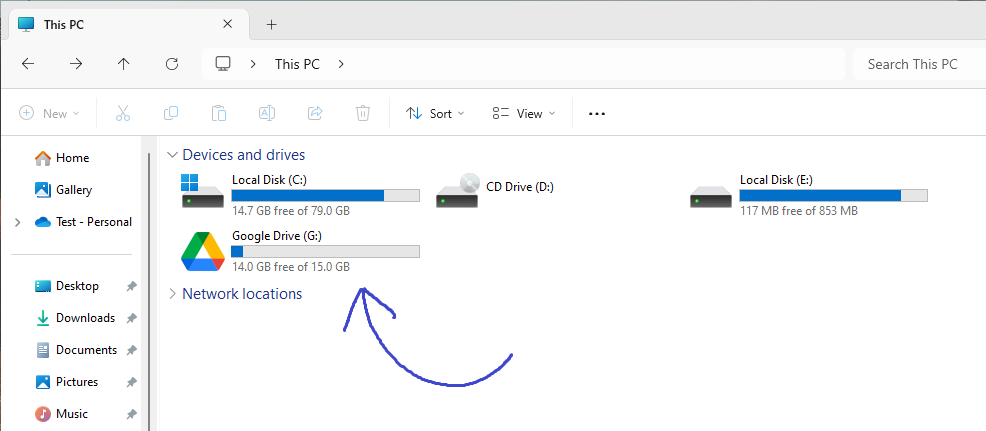
Option B gets closer to the setup I’m after, but still misses the mark. If you open the app’s settings, you’ll find a “My PC” tab, with a button to add a folder to backup. Looks like we’ve found it! Or at least, until we finish the flow.
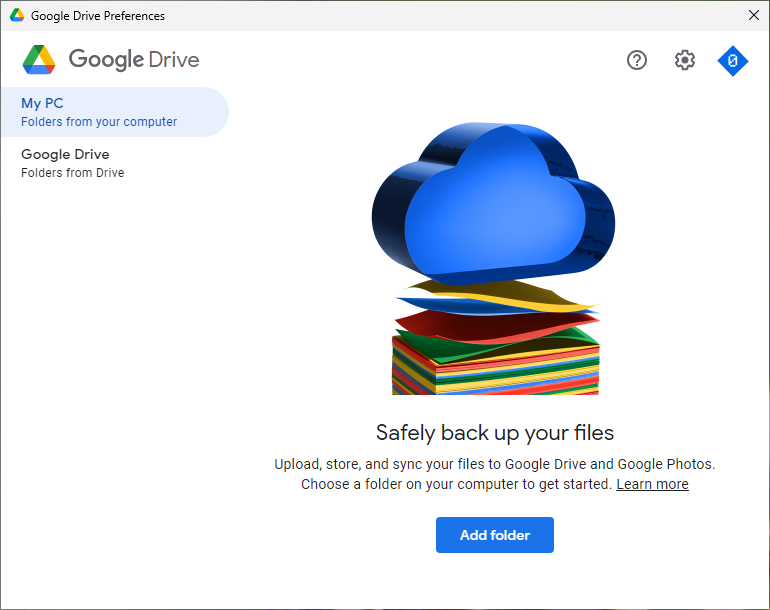
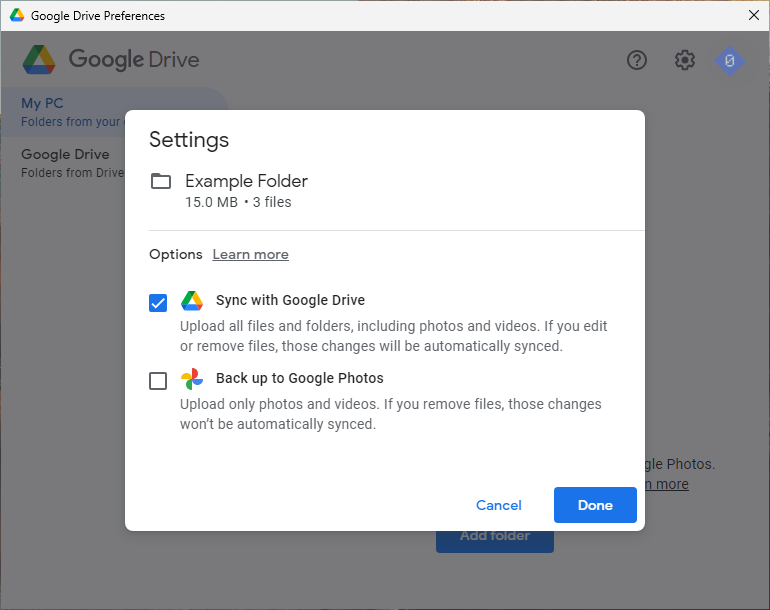
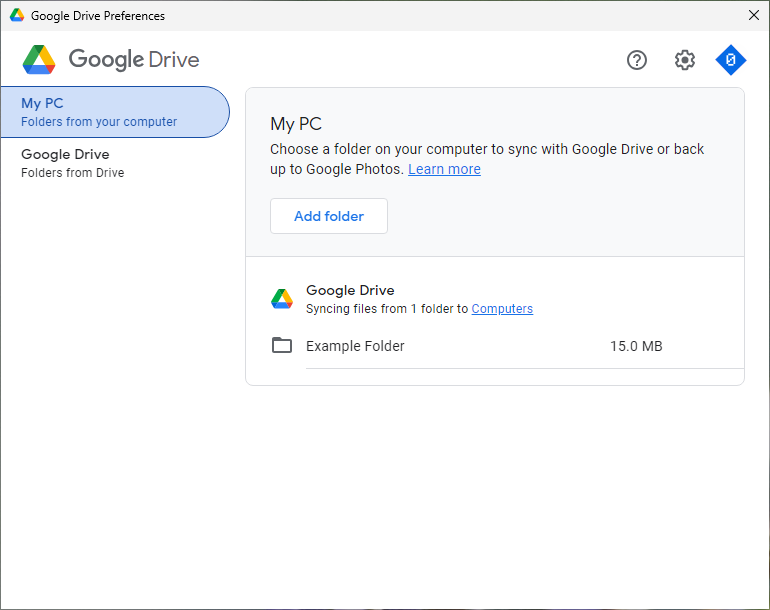
Looks good, right? Well, not quite. I’ve created a folder on my computer called, well, Example Folder. I added it to the Google Drive app, and now it’s syncing, but to where? Let’s find out:
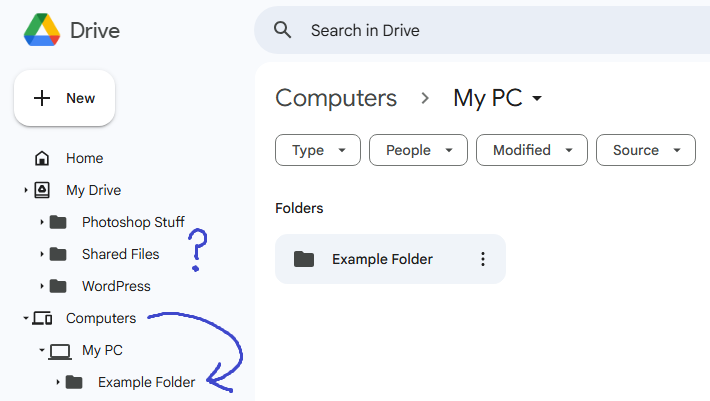
Turns out, folders from your computer that you add to this app don’t go to your “My Drive” section at all. They’re curtained off in a completely different area of your Drive named Computers. Why is this a big deal? I mean, you can still do essentially everything with these files that you could with normal Drive files, regardless of their location. For one, basic organization. It’s now more difficult to merge this folder to an existing location, leaving me with two separate folders for something that could just be one. But even more severe than that, is what happens when you need to re-install this app or switch computers. This is your warning to keep the file sizes of what you backup using this tool to a minimum.
If you ever need to switch to a new computer, sign out of your Google account in this app, or even just delete and re-download it, it is impossible to re-connect an existing backup or sync; you can only start a new one. This means you will be forced to re-upload all of the content that you had backed up, from scratch! Depending on the amount of content and your internet speed, you could be leaving your computer on for days while this happens. This oversight is the main driving force that sent me on this journey. I can’t fathom why any application would be written this way.
2. The Dance of File Formats
Like most of Google’s products, their office suite is web based. This means that if you want to work offline, you’ll need to use the Chrome browser coupled with a special extension that keeps the website working when you don’t have internet. In Microsoft Office, you can save your work as a .doc or .docx file on your computer, move it around, and open it whenever you want.
What if you want to save a Google Doc file to your computer? You can, but only as another format.
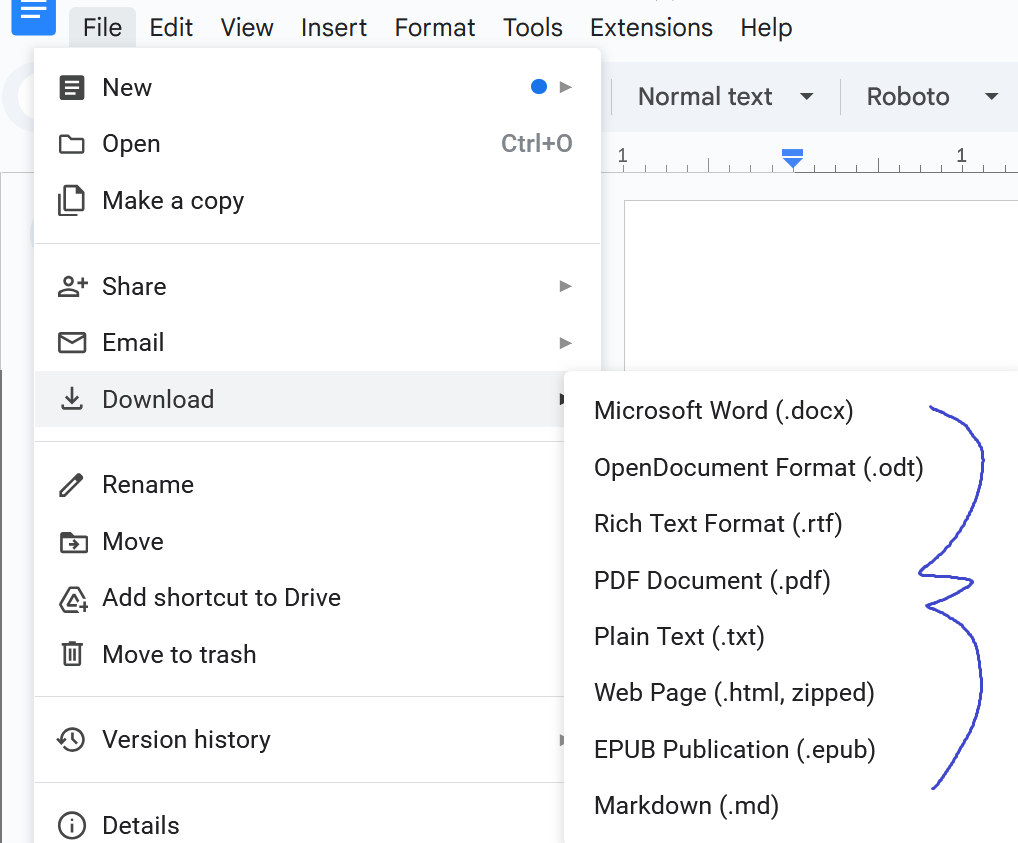
Where’s the “Download as Google Doc file” option? Is there even such thing as a Google Docs file? The answer to that is a flat no. Since Google Docs was only ever intended to be accessed from an internet browser, a proper file format was never created. Instead, the Docs editor uses either an HTML frame or SVG canvas to display your document, with some additional skinning and formatting features added. However, when Drive for Desktop was in development, Google needed a way to show something in your computer’s file manager to represent a document. If we look at what our Google Doc files show up as in Windows Explorer, we see this:
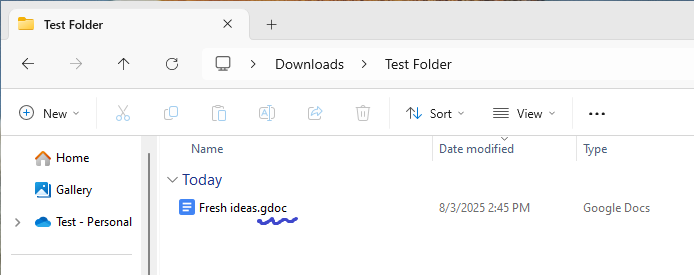
Ah, so it’s .gdoc. But when we look inside the file, this is what we see:
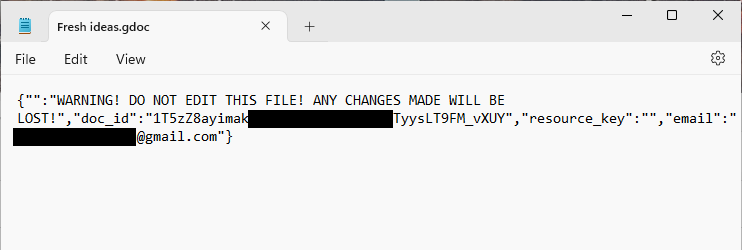
Just a small string of data pointing to the online version; the document itself is not stored here. If you double-click on that .gdoc file, it works, and your document opens in your web browser. But if you do anything else with the file, like copy it to another location or upload it somewhere else, it doesn’t. You end up only copying this fake “shortcut”, and not your real document.
This is a mistake many people make when using Drive for Desktop. Could you blame them? They go to add an email attachment, and select what looks like their document, when in reality, it’s a disguised shortcut. The recipient is then left with a file they can’t open. This is something I’ve witnessed myself when helping other people, needing to inspect the shortcut with a terminal to extract the file ID, which isn’t something the target audience for this software should be expected to do.
3. App Quality
My last pain point for this app is a collection of small things that all impact its overall quality. This isn’t something that’s often discussed, but it’s a key element of what makes a piece of software feel polished and well-thought out. There are an infinite number of ways to solve a problem, but choosing the right ways and implementing them well is up to you. There are a few things I want to mention with this app that drag it down to a state below what I believe it should be in, given the scale of the company responsible for it.
Sync Engine Reliability
Arguably the most integral component of a file sync and backup application is the sync engine. This is the part of the app responsible for comparing files across several synced locations and deciding how to handle them. To build a reliable sync engine, you need to account for several different circumstances, and design with the mindset that your unique implementation will be responsible for the data of millions of users, because it is. This requires rigorous testing, and the ability to quickly push out updates in the event of an issue. For example, when a synced computer comes back online, it needs to correctly identify any cloud changes, deletions, or additions, and push them to the local computer on the next app start, without overwriting any local changes that were made before or after a given time frame. It also needs to correctly handle conflicts and have an efficient design (like using multi-threaded CPU scanning) when performing initial file system scans. This isn’t something the end-user should ever have to understand or think about. Unfortunately, the engine implemented in Drive for Desktop is a far cry from what I would deem reliable.
- When syncing large amounts of files, glitches often occur causing duplicates of files in the cloud, or the cloud copy of the local file to be replaced by a zero-byte file, and your data to be lost.
- There are no options in the application to configure how conflicts are handled, and there are no user prompts when one occurs. A file conflict is when changes exist in both the cloud and local copy, and one of the files needs to be overwritten. Here, Drive for Desktop will just pick one and overwrite the other.
- Even just now, as I was writing this article, I deleted a file from the Google Drive website that was in a folder synced to my computer. Instead of deleting the file on my computer, the app re-downloaded the deleted file, but it didn’t show up in the synced folder. Where did it go? I have no idea. Probably to some invisible cache somewhere. This type of inconsistent app behavior isn’t something that makes me feel confident about my backed up files at all.
- Drive for Desktop also has some integration with Microsoft Office apps. Understandably, Google doesn’t have as much control over Microsoft’s apps as they do their own, and there isn’t much incentive for them to support a competing workspace platform. However, the feature that alerts me when a file I have open in Word or PowerPoint is currently being edited by someone else did not work reliably, and I couldn’t get it to work correctly even once. The status indicator in the corner of the Word app would also display “Safe to edit”, even if there was active cloud editing from the Google Docs website. And of course, the latest versions of Windows, Chrome, Drive, and Office were all being used.
- The app’s homepage frequently displays the words “Up to date”, and “Checking for latest updates” right next to each other. Are my files up to date or not?
Overall Design
These aspects aren’t nearly as critical as the lackluster reliability of the sync engine, but they’re still important, so I wanted to mention them.
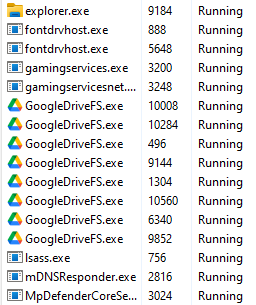
- The app has the drawbacks of typical software that uses CEF, (or Chromium) to render its interface. This means that the app currently spawns 8 background processes instead of the expected 1-3.
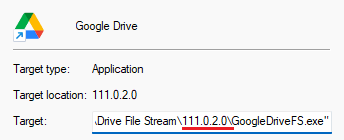
- The app changes it’s installation directory with every update, since the directory contains the version number. This results in the inability to easily pin the app to your taskbar or system tray, since the shortcut will break about every two weeks. It also makes system automation unnecessarily difficult. This was presumably done due to the file system lock on the app’s shell integration DLL, but the app I’m about to showcase also has such a DLL, and doesn’t suffer from this issue.
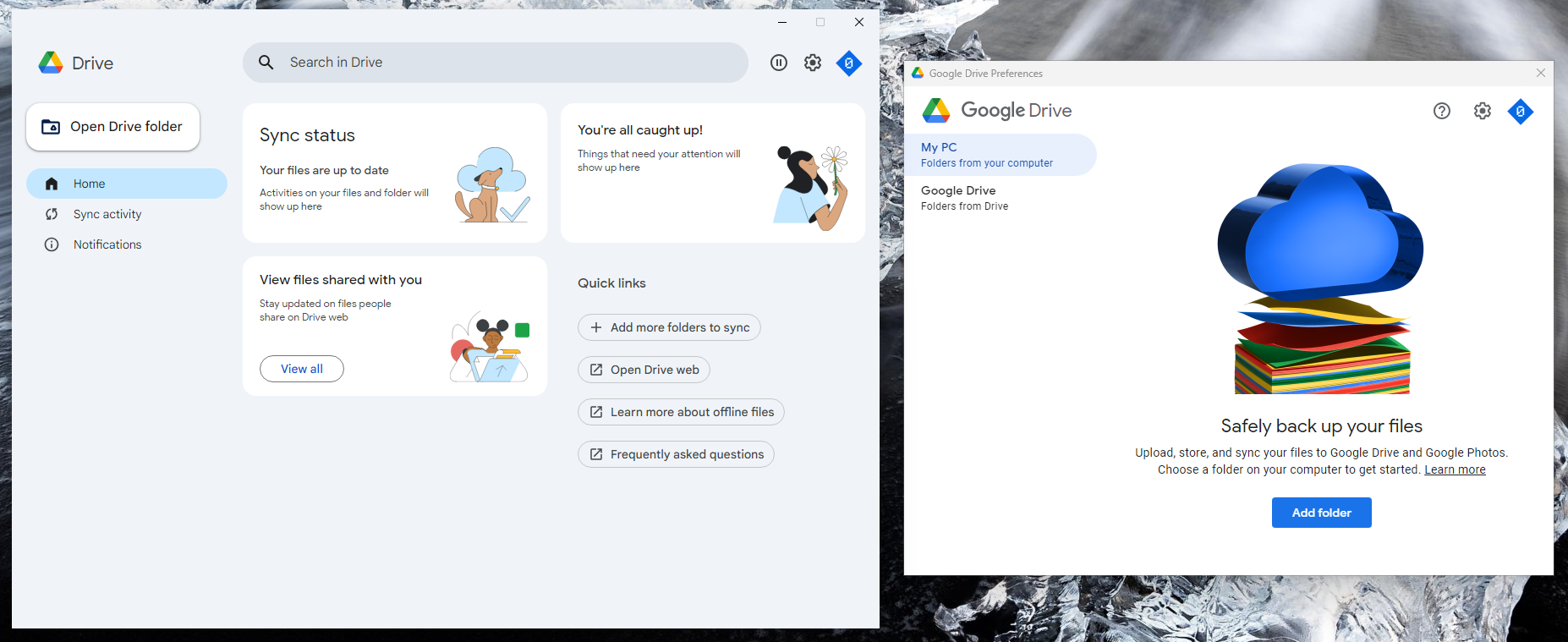
- The small status flyout that would appear when clicking the tray icon was removed and replaced with a separate window. The application now has two separate configuration windows, which is very disorienting.
- The desktop Drive search bar will sometimes open a file on your computer, and sometimes in your web browser, further disjointing the experience. This isn’t file-type dependent, and doesn’t appear to have a rhythm.
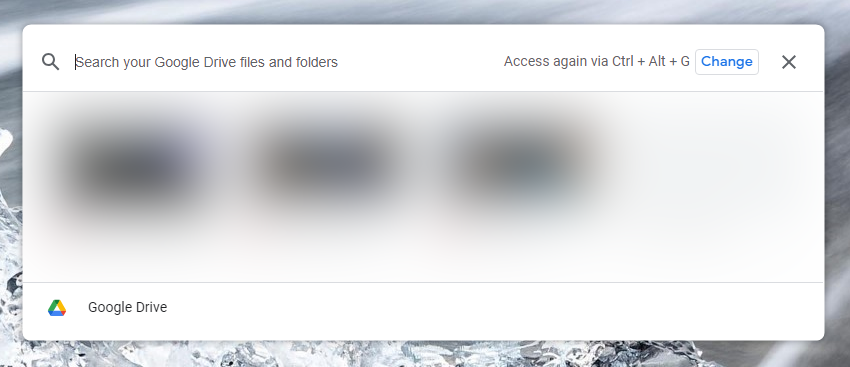
As it stands now, there are still a tremendous amount of rough edges in Drive for Desktop. In my time with competing platforms, like Apple’s iCloud, Microsoft’s OneDrive, or MEGA’s sync, for instance, I haven’t experienced nearly as much frustration with their respective desktop sync clients. I’ve already tried archiving the older, more stable version of Google’s software to no avail, so is there anything that can be done to improve this experience?
Introducing, Insync
Unlike Drive for Desktop, Insync is a third-party application developed by an entirely different team. It’s not associated with Google, and actually has support for OneDrive and Dropbox as well. When I was initially scouring the web in hopes of fixing the issues I had with Drive for Desktop, Insync was something I kept encountering during my searches, and it looked fairly interesting. So, I decided to download it and give it a spin. Immediately upon being greeted with the onboarding flow, I knew that this was the app I had been looking for.
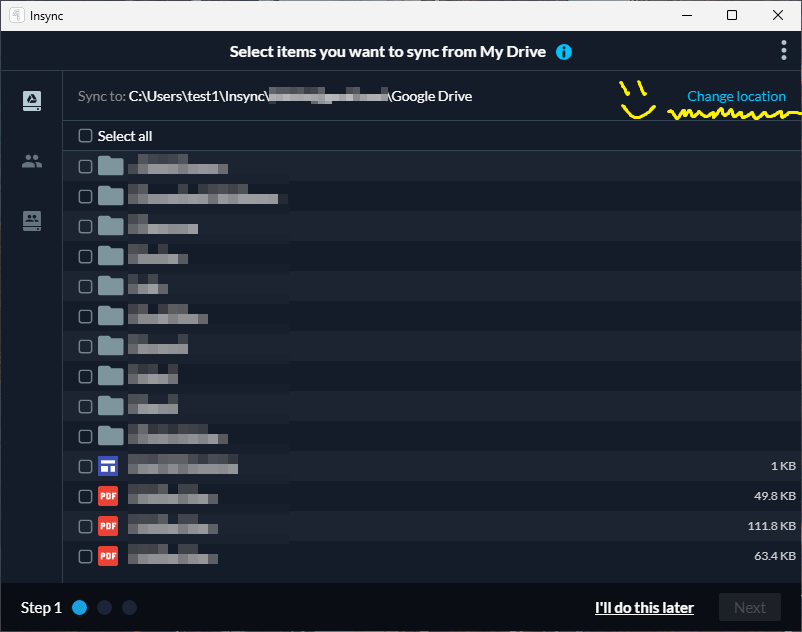
Immediately upon linking your account, the first thing that’s asked is which folders from your Google Drive you want to sync to your computer. There’s even an option to change the sync location right at the top of the window, without digging through pages of settings later.
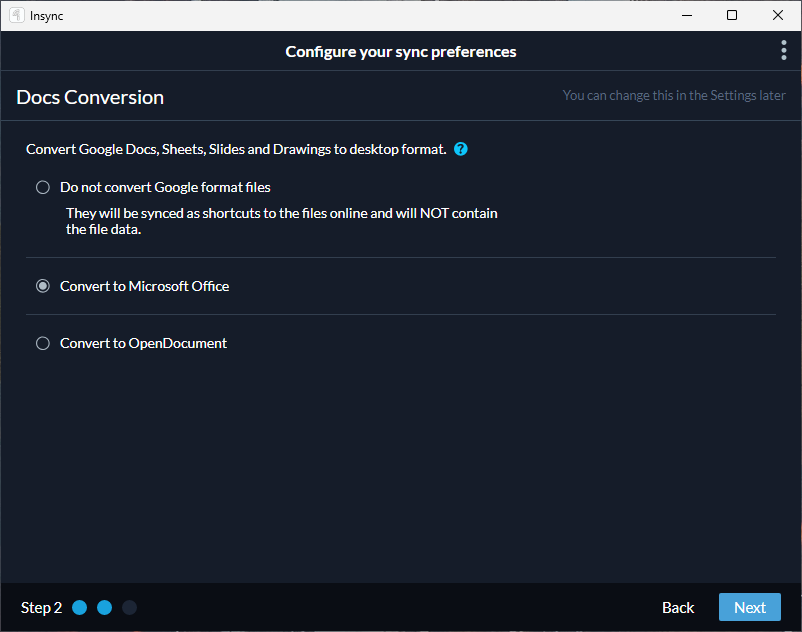
Secondly, we’re asked if we want to convert any Google Docs, Sheets, or Slides files into their Microsoft Office (or OpenOffice) equivalents. I’ll touch on this more later, but it’s one of the many great additions Insync brings to the table.
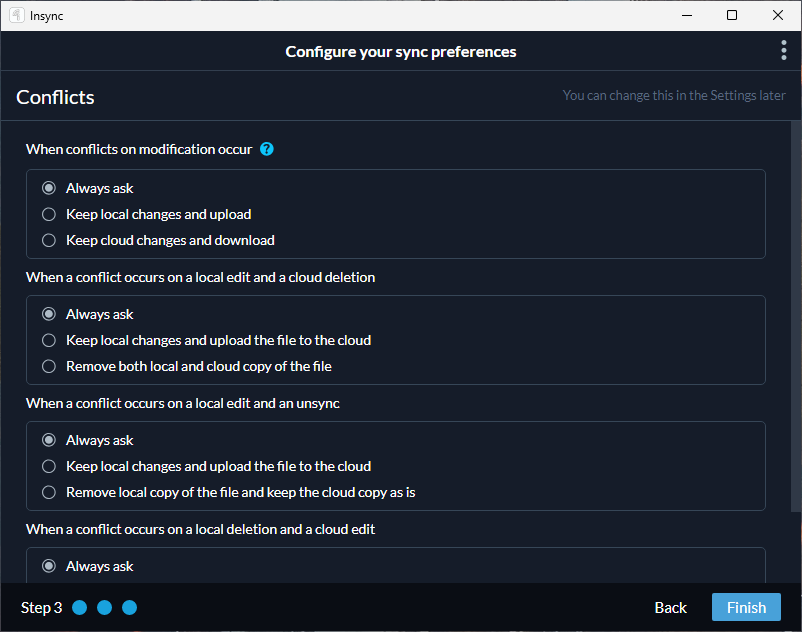
Lastly, we’re asked how we want file conflicts to be handled. As such an important element of keeping your data intact, I’m surprised this isn’t included on more desktop file-syncing clients.
We’re already off to a good start here, so let’s take a closer look at this app, and how it differs from Google’s.
1. Any cloud folder, to any local one.
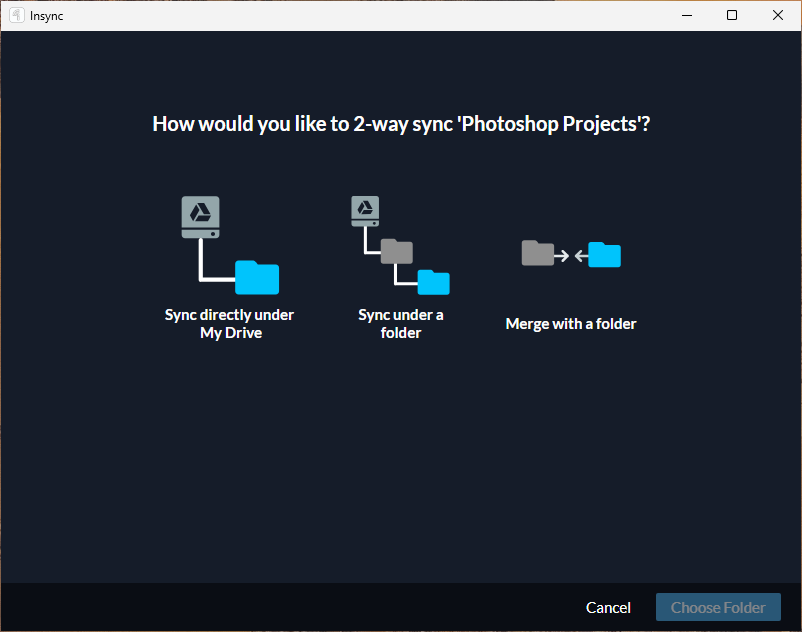
You can now select any folder in your Google Drive, and sync it to any writable location on your computer. No restrictions. You also set up as many custom syncs as you want, meaning you can sync different folders in your Drive to different locations on your computer. Also, like Google’s official app, Insync has support for multiple accounts.
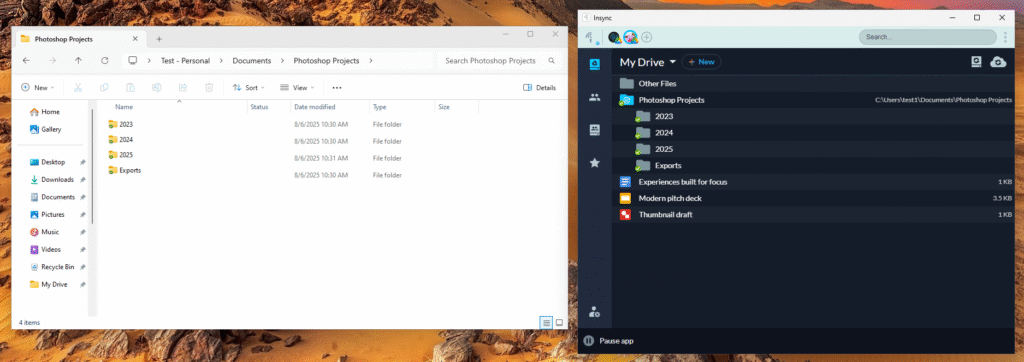
This solution also solves one of the biggest issues with the official Drive for Desktop app. If you ever need to disconnect your account, change computers, or re-install the Insync app, there’s no need to re-upload all your files to the cloud again. Just set up the folder sync to the same location you previously had. The app will scan both the computer and cloud folders, realize they’re the same, and link everything together automatically. Any future changes made on either end will automatically sync.
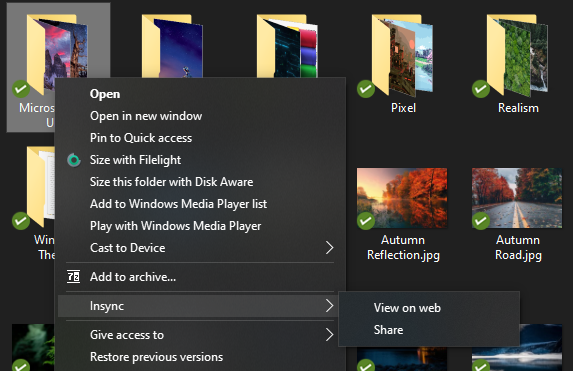
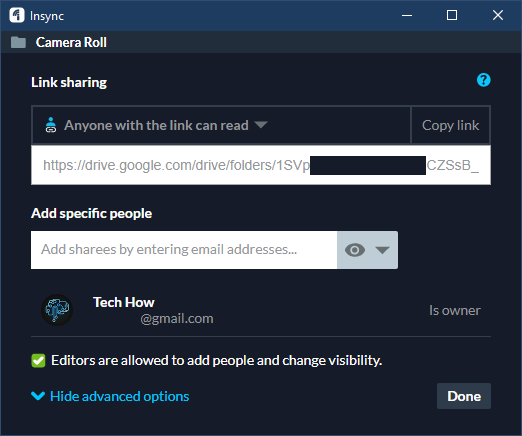
Despite being a third-party app, Insync continues to integrate well with the macOS and Windows file managers. Blue and green symbolic icons are displayed on files and folders that are connected to the app depending on their sync status, making it easy to see when a file’s done uploading without opening Insync. Upon right-clicking a file or folder, you can access Google’s sharing options directly from your file manager, as well as open the file on the web if you wish.
2. Working offline and integration with desktop Office apps.
One of the standout features of Insync is the ability to convert files between Google Docs, Microsoft Office, and OpenOffice in real time. This only works if the file was initially created as its Google counterpart, but if you, say, have a Google Docs file that’s syncing to your computer, Insync doesn’t just download a shortcut to it like we saw previously from Drive for Desktop. Instead, it saves the full contents of the file to your computer, eliminating the “fake shortcut” issue entirely. The file format used can be either Microsoft Office or OpenOffice. This allows you to open your document locally on your computer and edit it, and when you save your changes, the cloud Google Doc file gets updated. The same holds true for presentation and spreadsheet files.
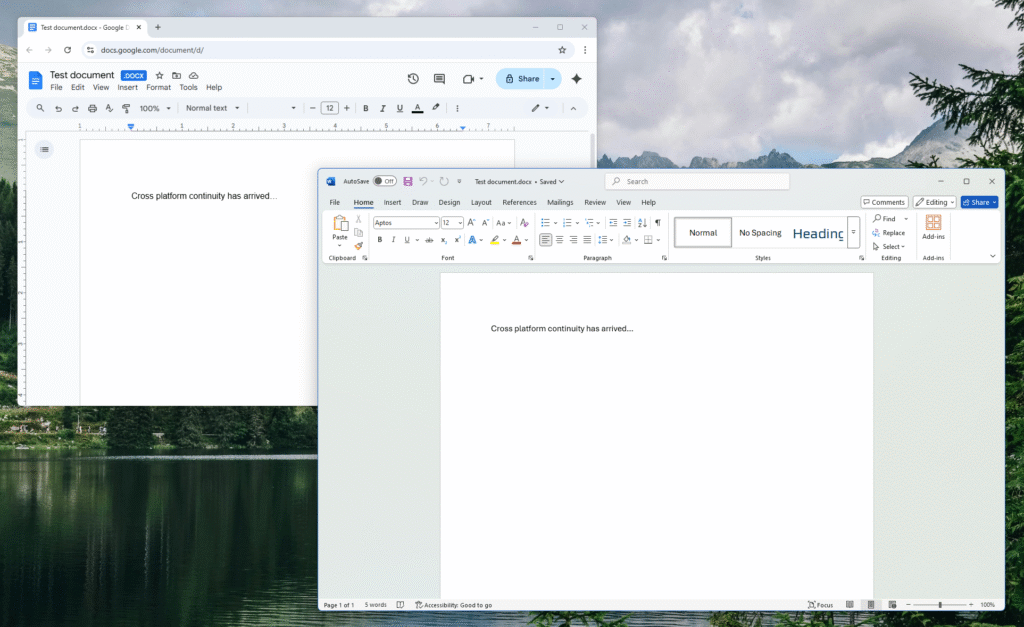
While this doesn’t quite reach the level of integration you can achieve when two people are editing a Google Doc at the same time, it does make it a little easier to hot swap between platforms if you need to use both. Changes still need to be saved on one end before they’ll show up on the other.
3. App Quality
I previously mentioned that I was unsatisfied with the general quality of Google’s Drive for Desktop app in numerous ways, some of them more important than others. Their sync engine had several reliability issues and the software itself had many rough edges. Insync is able to fix not only the most critical reliability issues, but also iron out all the gripes I had with the official app.
Sync Engine Reliability
I simply cannot stress how crucial the reliability of an application’s sync engine is, as well as what it does in the result of a file operation failing. In most cases, the end user won’t realize chunks of their data was missing or overwritten until it’s too late to recover. Drive for Desktop still has several bugs with its implementation, which I didn’t go over in as much detail as I could have. I didn’t want to make this unbearably long, but I’m happy to troubleshoot it more in the future. Regardless, here’s what Insync improves upon.
The first hint at a step up in reliability is during the app’s setup. We get asked something we can’t find an option for anywhere in Drive for Desktop. How should file conflicts be handled? If someone else makes edits to one of my files while I’m working offline, what should happen when I come back online? Should their changes overwrite mine? Should my changes overwrite theirs? Or should the app ask me? I’m almost certain most people would prefer the third option. Loss of data would be the last thing anyone wants to deal with, especially since it may not be noticed until weeks later. The good news here, is that not only does Insync provide this functionality, it’s on by default.
The default selection of “Always ask” for each scenario will satisfy the majority of people. The other options come in handy for developers, or people who are dual-booting operating systems. If you do end up in a situation where you frequently encounter file conflicts, rather than being spammed with errors and notifications, you can choose to have Insync silently handle those in a specific way each time.
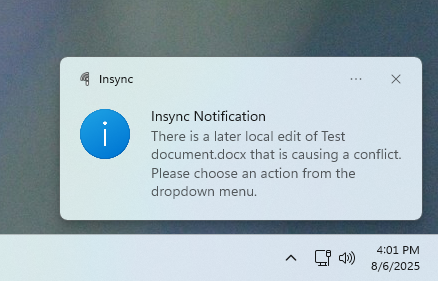
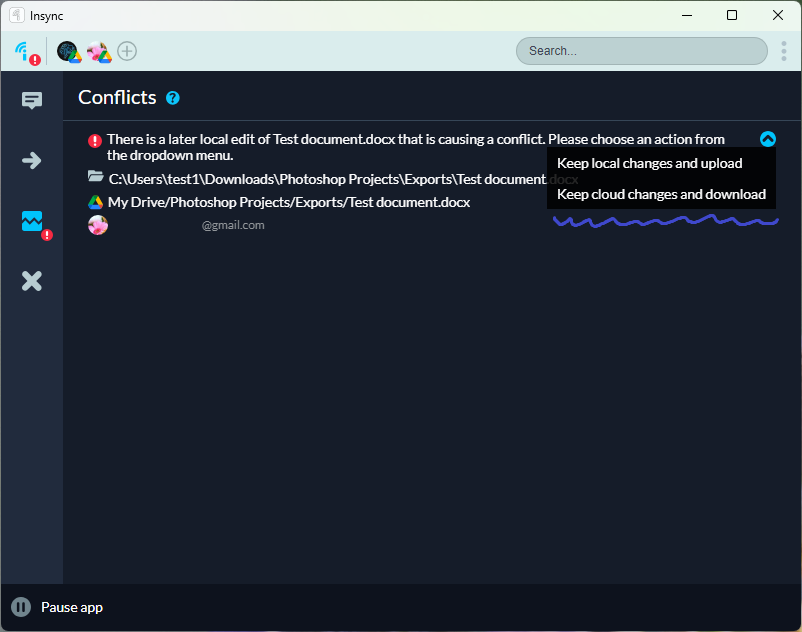
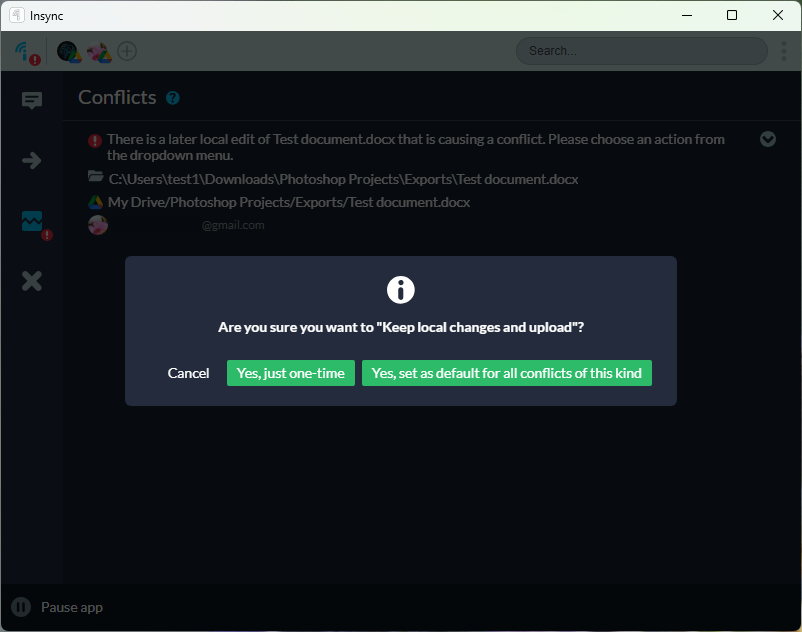
Although I can’t speak for everyone, I can confidently say that I have never experienced a loss of data due to Insync malfunctioning in my several years of using it.
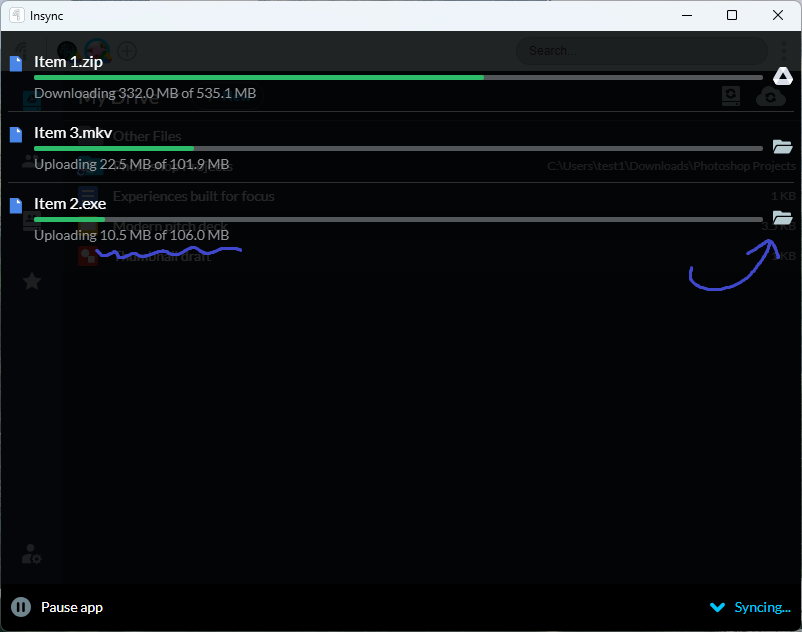
Expanding the bottom area of the app will reveal a status overlay that shows what files are currently being uploaded and downloaded. This becomes useful if you see changes being made that you want to quickly stop, or are unsure where a file is coming from. Clicking on the folder or Drive icon next to the file will show you where it’s located. This design mechanism makes it easier to identify what’s happening with your files and gives you more confidence that everything’s being handled correctly.
Overall Design
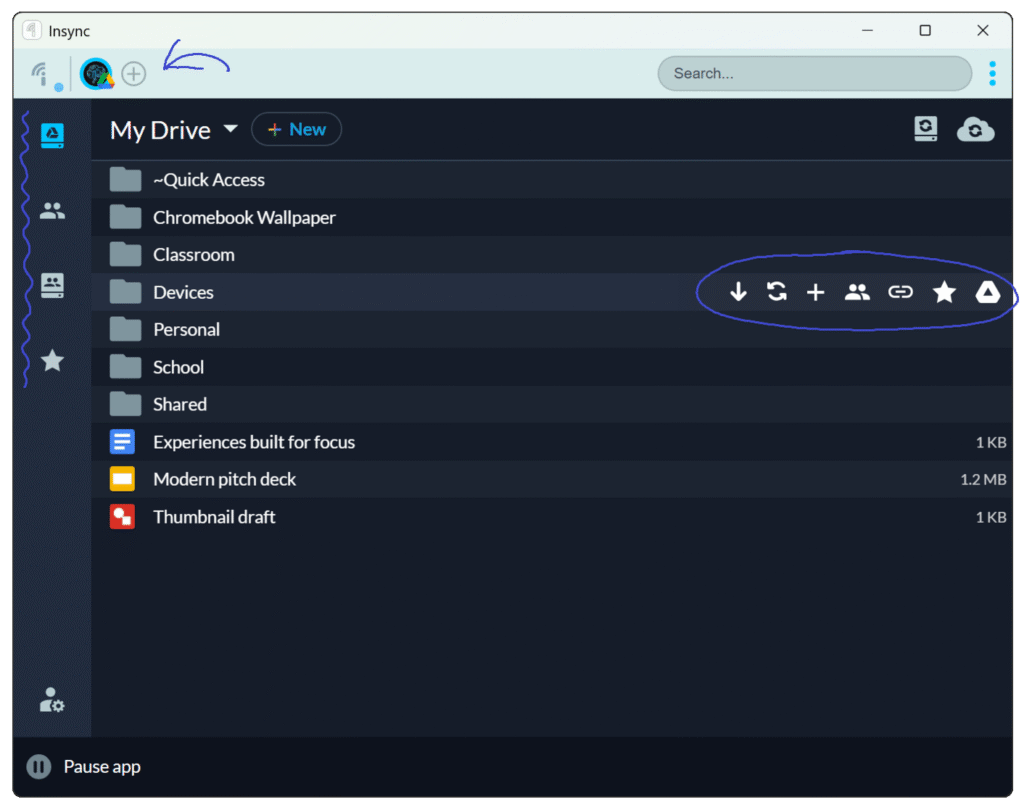
Speaking of design, it’s another area where this app holds its own. Everything inside gives an indication of thoughtfulness and efficiency. The general layout is quite different from Drive for Desktop, but since everything is contained in a single window, it’s far from overwhelming. Your app settings and account switcher is at the top, the different sections of your account on the left, and your Drive in the middle. It’s also feels fast and responsive while you’re using it, thanks to the use of an efficient UI framework and compact element spacing.
As you hover over each item in your drive, icons for one-way syncing, two-way syncing, file/folder creation, sharing, link control, starring that item, and viewing it on the web are revealed. On the left, you can also quickly access your starred items from your desktop, as well as anything that was shared with you.
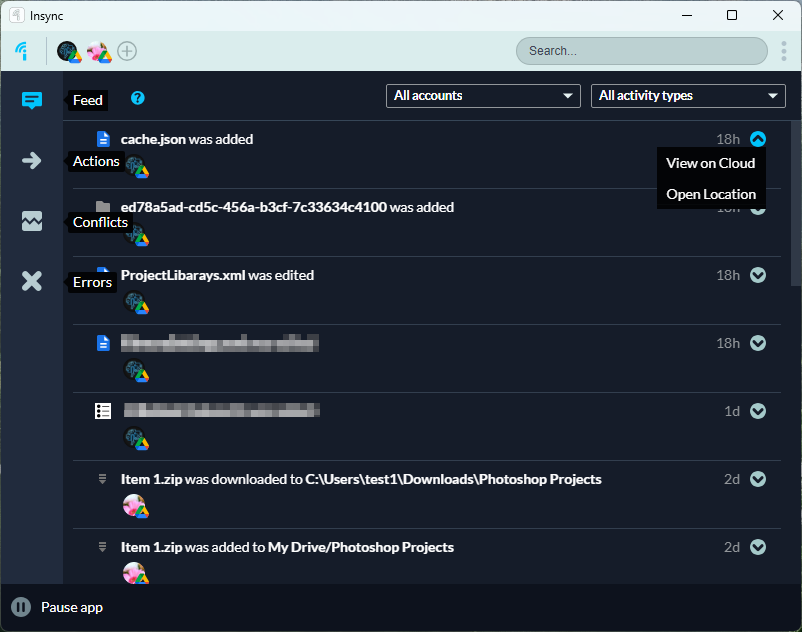
Additionally, clicking the Insync logo in the upper-left opens the Feed, where any changes to items in your Drive are shown. While you’re in here, the left pane options change to help you quickly resolve issues with your files. And of course, you can also search and filter this window by account and activity type.
Checking resource usage in task manager leads to a pleasant surprise. Compared to Drive for Desktop, we don’t get nearly as much process spam.
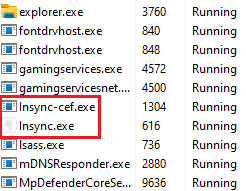
Because of this, the average memory usage is less, and it’s not as taxing on your system, which is very ideal for a background application designed to have its interface hidden most of the time. Even Google’s current implementation could be tamed by unloading the UI renderers when they’re not on screen, an effective tactic that very few programs seem to employ.
Like Drive for Desktop, Insync uses a shell integration DLL to integrate with Windows explorer and display status icons on folders. But unlike Drive for Desktop, it’s able to do this without changing the installation folder with every update. Because of this, the app stays pinned to your taskbar, tray flyout, and doesn’t keep jumping to the top of your Start Menu every two weeks. It’s also easier to automate tasks with the app in situations where specifying an absolute path is a must.
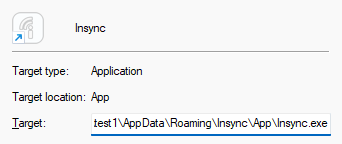
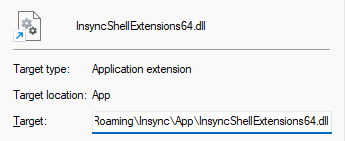
Often, it’s the little nuances in software that really end up making a difference. When I added a new sync for one of my computer’s folders, I had completely forgotten that I had several symbolic junctions inside of it. A symbolic junction is one of the many advanced link types in NTFS, and can only be created via the command-line in Windows. It’s practically never used by anything, even amongst advanced users, but I was one of the few. Imagine my surprise when I opened the errors tab in Insync and saw this entry:
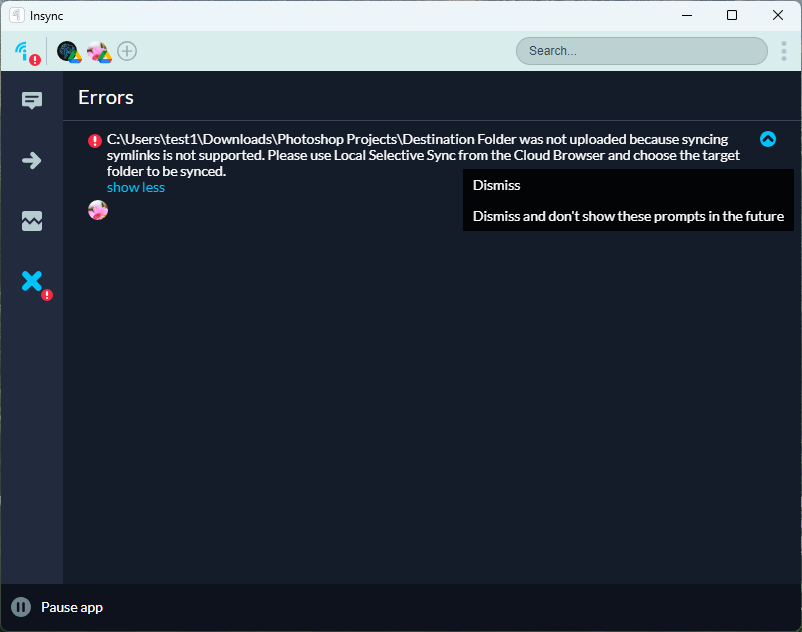
I can’t even recall the last time I’ve seen an application specifically check for symbolic links for any reason, outside of WinDirStat and other specialty disk analysis tools, and certainly not by any other desktop file syncing client. It’s seldomly talked about online, and its use cases are extremely narrow. I’d be surprised if you even know what a symbolic link is, but the development team behind this app did, and programmed a specific exception to catch it. There’s also a straightforward description telling me how to fix the issue without needing to open up a help article in my browser.
4. Extra Features
- The app’s increased reliability and more thoughtful design already give it an advantage, but there’s a couple extra things that let you dial it down even further. The first one being ignore rules. As you continue to add more synced folders to your account, you may run into specific items that you want to exclude from being transferred between your devices. In your account settings, you can specify locations, files, or even specific file types that you want to always be ignored from the sync engine.
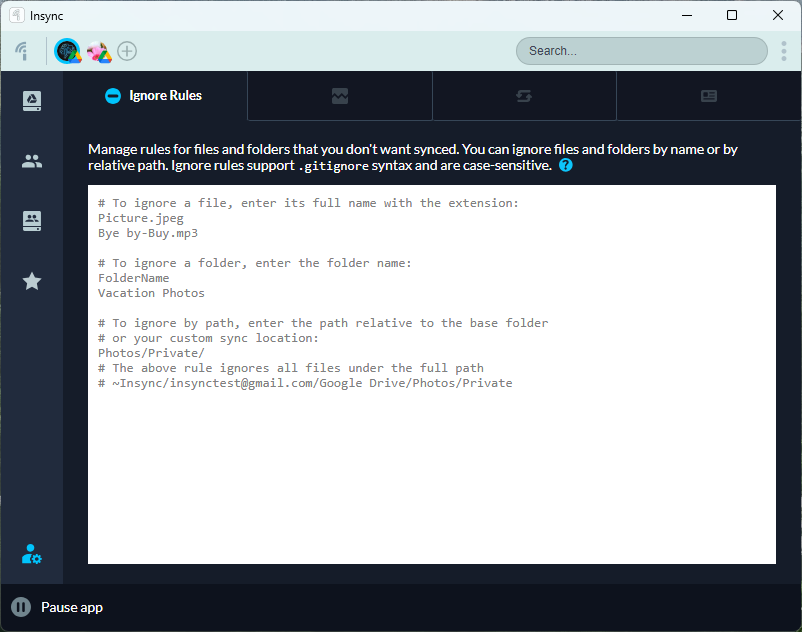
Often times, you don’t have control over where an app on your computer saves certain files, and it might just end up in one of your synced folders. If that’s the case, you can stop worrying about filling up your Drive with those unnecessary items, and only backup what’s important to you.
- Oh, and by the way, this app has full Linux support, in case you’re using it on one of your workstations or servers. Finally, you don’t have to switch cloud providers just because you switched operating systems. During my time using it, it was just as reliable as the Windows version, and scanned my directories blazingly fast on a tiny Intel Pentium processor with 8 gigabytes of memory. Under a scenario like this, the app’s optimization and lightweight nature paid off in spades.
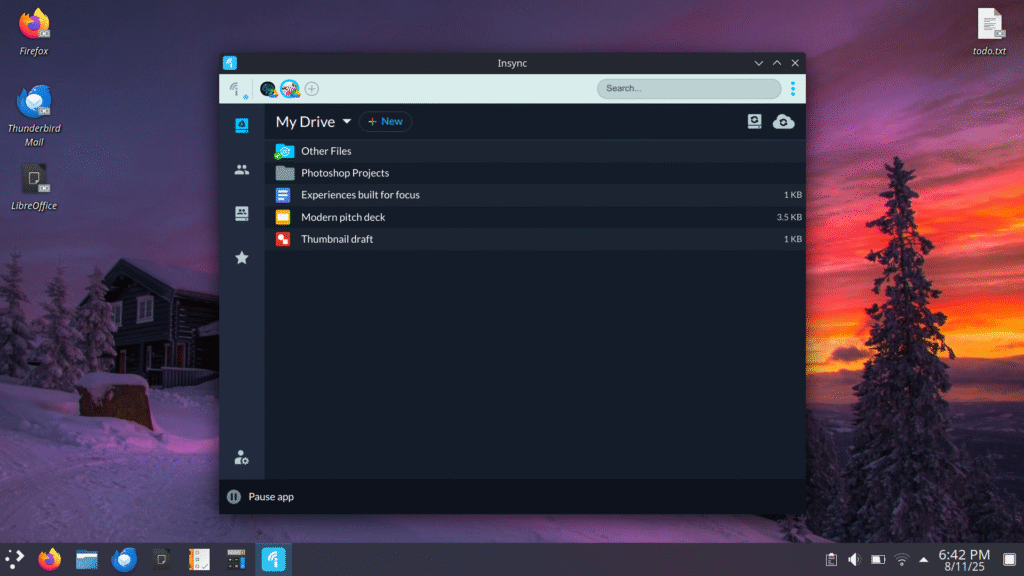
Remember, Windows and Linux have entirely different file system structures. Large portions of this app’s internal sync engine needed to be completely re-written to function on Linux, even though the application looks the same from a user perspective.
Wow, that’s quite the difference.
When I started down this rabbit hole, I wasn’t expecting to find much. After all, the amount of people frustrated with Drive for Desktop in a similar vein to me wouldn’t be nearly enough to warrant a team of people developing an entire alternative client. Nonetheless, that’s essentially what happened. It’s not often I stumble across gems like this one, which is why I decided to make it the first mark in my continued series where I showcase software projects that are overachieving, yet under-recognized.
Even though it’s a great app, though, there’s always room for improvement. Here are a few ideas, speared by what I’ve seen around the official forums.
- An option to offload files that haven’t been used after a set period of time to save storage space. This is what Drive for Desktop refers to as “streaming” files. Insync wasn’t originally developed with this idea, but it could still help reduce clutter for some users. It could improve upon Drive for Desktop by continuing Insync’s existing design philosophy and giving users granular control over this behavior. What if I could set my own size threshold for a file to be offloaded after, and also choose a duration of time that has passed without that file being accessed locally? This would introduce complications, however, since a fake “ghost” file would need to likely be displayed when the actual file has been offloaded, which has the potential to introduce more confusion into the experience.
- The ability to control how much network bandwidth is used by syncing operations would help in situations where the app uses all of it, preventing other applications from running reaching out to the internet. This would also aid the server client when using remote desktop software. Drive for Desktop does support this functionality.
- Right now, there’s only a global toggle for notifications in the app. Being able to control which accounts send desktop notifications would be a welcome addition, and having control over which types of file actions trigger them would be even better.
Wait a sec…
After all this digging and comparing, there’s one last thing I’d like to draw your attention to, and it’s the amount of people working on these respective applications. I have no real insight to either of these teams’ engineering processes, and I’m not going to pretend that I do. What I can say, though, is that Insync is absolutely nowhere near the scale of Google development wise. Think about it for a moment, and if you for some reason aren’t convinced, here’s why I say that:
- Their website’s homepage and overall layout has remained stagnant for years, which can be proved by running it through the Internet Archive.
- The end-user licensing costs have slowly increased, while the software itself hasn’t been receiving many updates. The last update was over two years ago from the time of this article.
- When I’ve reached out to their support team with questions over the years, I’m always greeted by the same face and name.
- The last blog post was in late 2020, which has had steady posts up until then.
The software is by no means abandoned, and their team members continue to respond and answer questions in their official forums as I’m writing this article, and address and patch issues. When I began using the software in 2022, new features and updates were still being pushed, and it continues to remain well-known in the Linux and open-source software community. Among the general public though, not so much, which is partly why I decided to write this.
So, yes, the team is small. Especially when compared to Google. So how, then, did they create a product that absolutely wipes the floor of what a company ten times the size produced? Even with three years worth of updates to Drive for Desktop, it doesn’t improve in any meaningful way. Meanwhile, Insync hasn’t received any updates in that time, and is still more robust.
While I can’t speak for either of them, I encourage you to think about this size to quality ratio the next time you’re left frustrated with software you’re stuck using, since there’s a pretty high chance it could be a lot better than it currently is. The example I went over is far from an isolated case; it’s actually extremely common in software. Sometimes, it’s not a matter of scale, it’s one of dedication and where the developers place their goalposts. Independents simply aren’t held back by the burden of people higher up directing them on what to do, and genuinely enjoy the task at hand. Company structure and motives also have little to no effect on how they work, and what they work on. This makes an immense difference in the quality of a finished product and the communication between the users and engineers.
Large companies, like Google, don’t have much of an incentive to create the best possible product they can for their customers. If Drive for Desktop was the only option to integrate Drive with your computer, it wouldn’t matter how bad it is, because you’d have nothing else to use. Even still, since Insync remains under the radar, Google doesn’t feel any pressure to improve.
So, should you switch?
If you’ve been frustrated with the Drive for Desktop experience yourself, or even found some of Insync’s extra functionality appealing, it’s certainly a great solution. I’ve thoroughly enjoyed my time using it, and love how small of a footprint it has on my system. It’s basically a set-and-forget app, keeping exactly what I want synced. It has excellent Linux support, file manager integration, and a reliable sync engine. Whether it’s right for you, though, is up for you to decide. Unlike Drive for Desktop, it isn’t available for free. It’s a pretty pricey app at a now increased price at $40 per cloud account, and it needs to deliver a lot of compelling value for someone to want to pay that much. At that price, you used to get unlimited accounts. The good news is that you don’t need to enroll in any subscription; it’s a one-time purchase.
If you’re a basic user of Google Drive, enjoy the way your entire Drive is shown on your computer as an icon, and aren’t big into organizing your files, Drive for Desktop is enough. It doesn’t clog up your disk space, and only keeps offline copies of the files you use frequently. If you use Google Chrome, you can also edit recently opened Google Doc, Slides, and Sheets files offline with it.
If you are heavy into organization, use a lot of different applications on your computer, or even have multiple computers you want data synced between, it’s certainly worth a look. The trial lasts a week long, during which you can use all functionality and add as many accounts as you wish. Developers and Linux enthusiasts also get the same great experience Windows and Mac users do, which is a rare thing to say.
That’s all I’ve got for now! I hope you’ve found this information useful, and congratulations to the Insync team for being the first program that I’ve showcased in this series. I’ll leave links to both applications discussed below, and encourage you to take a look. Thanks again for your time, and I hope you’ve learned something.
Tristian
Insync Homepage: https://www.insynchq.com
Drive for Desktop Homepage: https://google.com/drive/download