
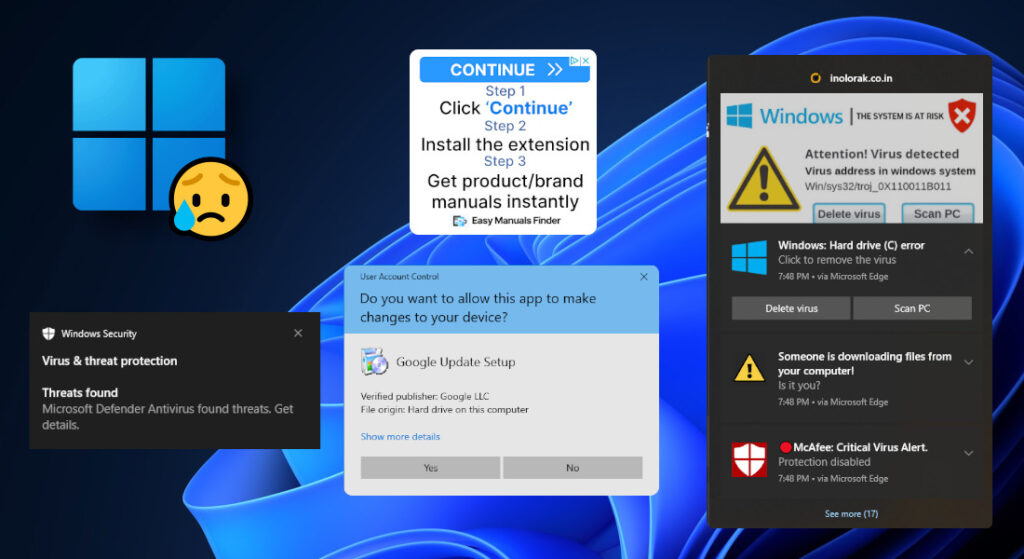
Microsoft’s flagship operating system and malicious software couldn’t stand closer together. Despite the company’s gradual improvements to the security of Windows over the years, it remains a top target for malware authors and black-hats. I don’t often see people vocalizing these issues outside of articles titled, “52 new Windows zero-day exploits found this month- PATCH NOW!”, or “Insights revealed- company data breach leaves millions of passwords and SSNs at stake…”. At some point, you really have to take a step back and ask yourself, “What can I do about this?” And no, I don’t mean that specific incident. Those articles rightfully alerting consumers about new attacks already provide information on how to deal with the matter, but that’s after it’s already wrecked havoc on hundreds of thousands of lives. Cyber threats aren’t disappearing anytime soon, and people can only be told to “go change all your passwords” so many times. To make meaningful improvements in this space, we need to shift our focus away from response, and more towards prevention. This requires educating people on not just what actions to take, but exactly how those actions are improving their security, and what improvements they make in an understandable, relatable way. A list of steps doesn’t do much without meaning. Sure, throw me a sack of programs and say, “install them to improve your experience”. But if I don’t know what they’re even doing to protect me, what’s the point?
Why Windows?
Microsoft Windows certainly isn’t the only operating system out there, but it is the most vulnerable to hackers and malicious software. Why is that? Well, it really narrows down to two key aspects: its versatility, and market share. What sets Windows apart from the competition, and makes it especially appealing to businesses, is that it can do basically anything. At first glance, Windows is simply an operating system akin to macOS or Linux, as it’s used on personal laptop and desktop computers. What you might not have realized, though, is that the vast majority of electronic devices out in public are really just Windows computers in disguise. What do ATM kiosks, arcade machines, grocery price scanners, and airport terminal displays have in common? They all run Microsoft Windows. Most of them, anyway. It’s not just digital signage either. I’ve seen computers being used to control assembly robots that were running a Java applet on top of Windows Server, and that’s just one possible configuration. A recent global Windows outage even made hospital equipment inoperable. If you’re engineering nefarious code, why on earth waste your time developing for Mac, when you could target an operating system with over double the market share, taking off with consumer and business information?
Unfortunately, it’s not just as simple as switching to a different operating system. While that might work for you, a large chunk of consumers are stuck on Windows as it’s the only OS that works with the software and programs they need to use. This reality is why it’s all the more important to understand how to keep it rid of garbage software. If Microsoft doesn’t excel at safeguarding their consumers, and consumers are unaware as to how to protect themselves, the result isn’t a pretty sight. So, let’s talk about that.
I’ll be covering three different things in this article.
- What should I look out for, and try to avoid?
- How can I increase my device’s security, and block some of these threats?
- What are some different types of common malware?
Keep in mind that this guide is focused explaining a narrow subset of issues I commonly encounter when helping people with their Windows devices. It is not a complete coverage of other threats like email phishing or online account security. Those topics will eventually receive their own highly-detailed, in-depth articles, with the same quality as this one.
If you just want to know what to do to protect your device, you could skip to the second section. However, I strongly believe in the value of learning this information, so I suggest you read through it. Many of these tips hold true for other devices as well, not just Windows. You’ll also be able to help the people around you!
Tips to spot common “internet garbage”
1. Malicious Advertisements
Malicious advertising, also referred to as “malvertising”, is when criminals use online advertisements to spread intrusive, unwanted software to your device, that can often be malicious. There’s a lot of different types of malware on this scale. Some can hijack your web browser and change your search engine, display pop-ups on your desktop, or even steal all your saved passwords. Contrary to popular belief, you do not need to be visiting any unsafe websites in order to get infected this way. The below example is a real website with malicious content. That’s why I refrain from telling people to “just stay away from sketchy websites”, as a way to remain safe, as if that wasn’t vague enough already, it’s not exactly easy advice to follow on its own.
The most common place you’ll see this type of advertising is when you’re trying to download something. Whether it’s some PDF viewer, an update for an app, or maybe a cool new tweak to one of your favorite video games, you’re bound to encounter them sooner than later. Take a look at this:
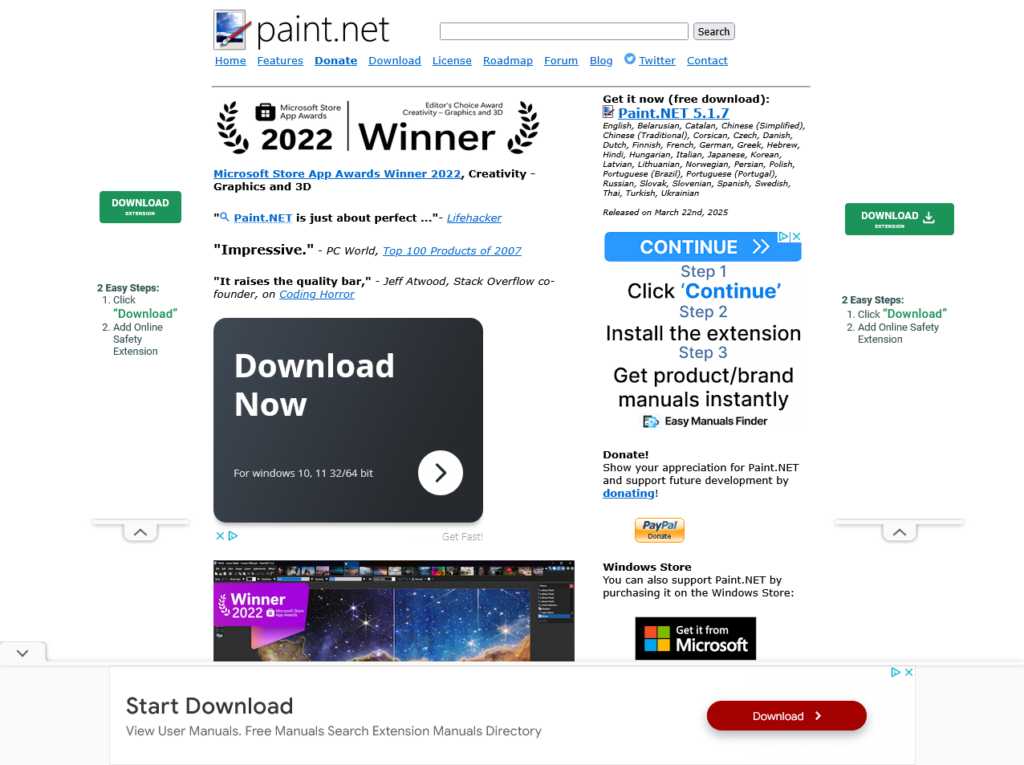
You’re trying to download Paint.NET. It’s a perfectly reputable free program, used by tons of people. So, go ahead. Click the download button.
Oh, what’s that? You don’t know which one to click? I thought you’d never ask.
No worries, it’s this one:
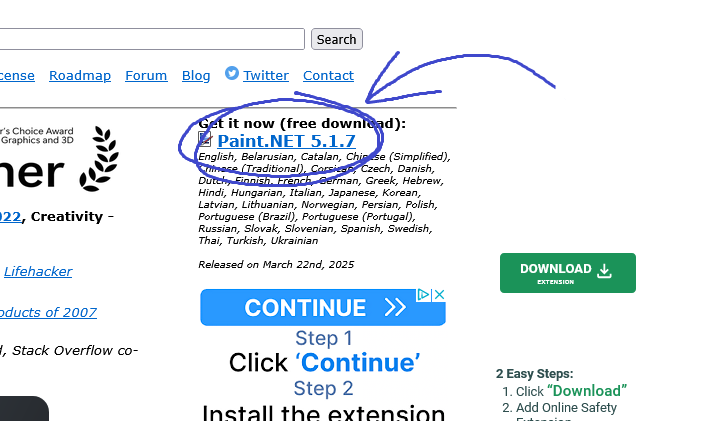
Yeah, I know. It’s not a button. It’s a link.
What’s going on here? Why is this website designed so deceptively? Is it infected?
No. Each and every one of these malicious download buttons you see above originate from Google’s Ad Network. Paint.net runs ads on their website to generate revenue, as the software is provided free of charge. It’s not their fault for this deception; the finger lies on Google. In 2025, Google’s still not able to stop them, despite having some of the best image-identification tech around.
Until we get some clarification or more prominent efforts from the company in ruling these out, the best thing you can do for your safety is to install an ad-blocker. There’s some controversy involved around the ethicality of ad-blocking software, as it’s how most websites stay afloat when everything’s available “for free”. You should get in the habit of donating to the free software projects you benefit from, and disabling your ad-blocker on sites you know are trustworthy. Unfortunately, your online safety is not up for debate, and internet advertising is only getting more malicious as time moves on.
Keep in mind that in order to get your computer “infected” with anything as a result of malicious advertising, you’d actually have to download and run some program after you clicked on an ad. Additionally, most advertising distributes mere unwanted, intrusive, and annoying software that can technically be removed, rather than actual malicious programs. We’ll go over how to set up an ad-blocker once we finish looking at some other things. That way, all of the preventative measures of this guide will be grouped together.
2. Notification Scams
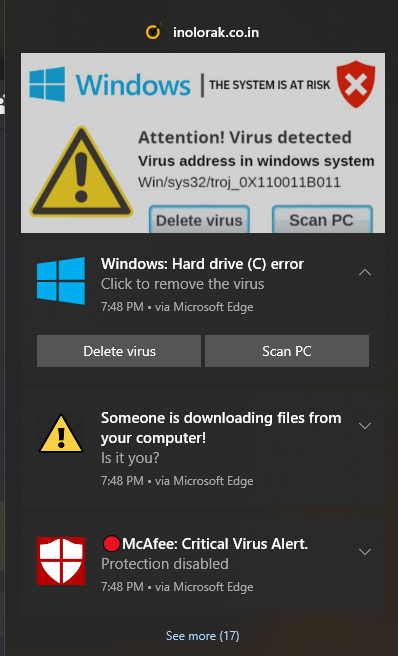
< Do these pop-ups look familiar? Hopefully you’ve never dealt with these types of spam notifications, but if you have, the reason for their existence on your computer is rather simple. If you were guessing advertisements, you’d be right. There’s no malware infection at all, just companies advertising their services in deceptive ways. Can you see a pattern with advertising here?
How did they get on your computer? If you land on a malicious webpage, you may have run into something like this:
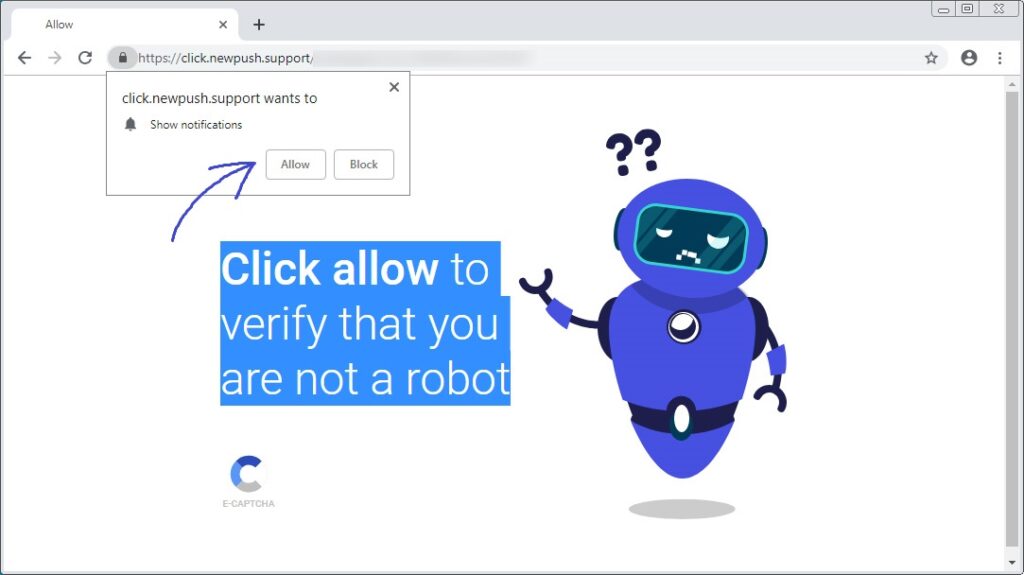
That pop-up in the corner is your culprit. At one point, you’ve allowed a website to send you notifications.
Similar pop-ups also exist on legitimate websites, so try to steer clear of these. Website notifications aren’t used for many legitimate things, and developers often don’t even set them up correctly. It’s good practice to block notifications unless you’re positive you know what they’re for, and want to receive them. Google Gmail and Calendar are examples of services that do use this functionality for legitimate reasons, but most prompts for this permission will result in unnecessary ads and annoyances. The good news is they can easily be disabled and prevented. Stick around to the end to find out how!
2.1: Fake CAPTCHAs
The reason for this being “2.1” is that it’s a very recent, but extremely dangerous attack that likely won’t be blocked by your computers AntiVirus if you fall for it. I’m compelled to cover it, as it’s crucial you know how to deflect it.
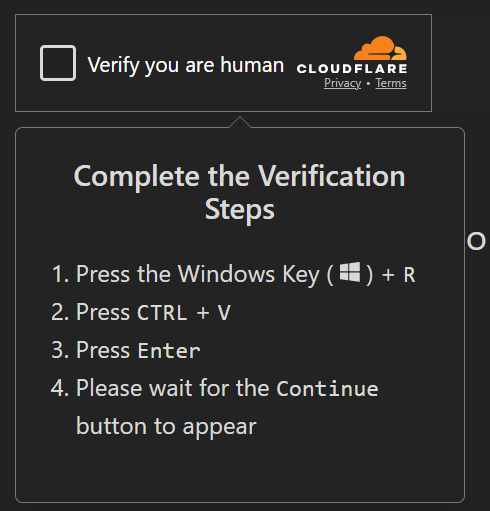
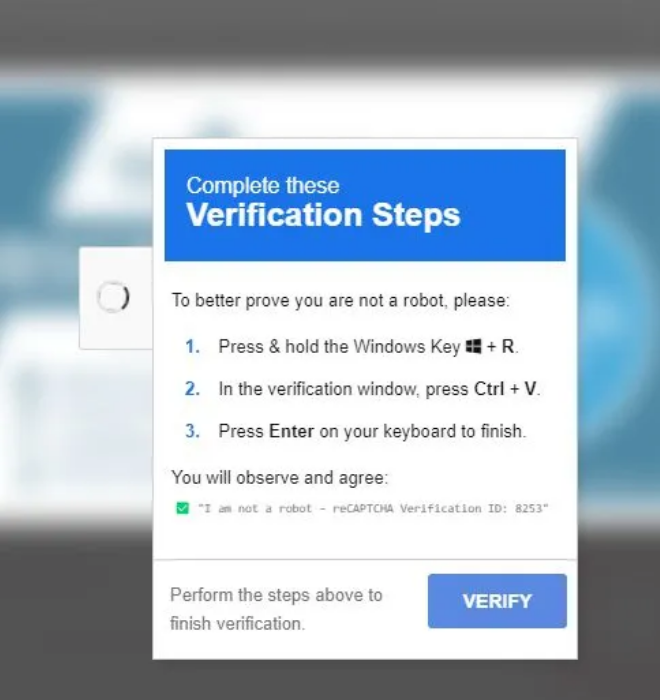
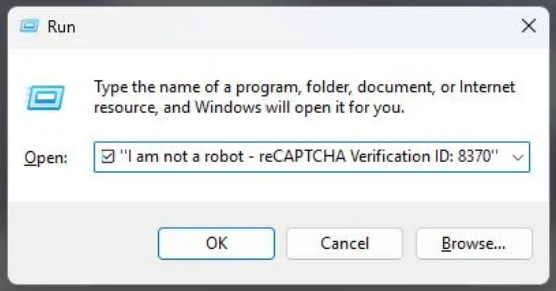
It’s quite simple, actually. If you come across a website telling you to complete a CAPTCHA or “robot test”, and the instructions are to copy and paste some text, do not follow those instructions. Since it’s easy to forget when you’re in a rush to get things done, I’ve crafted a special file you can download to essentially prevent this attack. It blocks access to the Run pop-up in Windows, since you probably won’t use it anyway. Your browser or operating system might warn you about this file, since it’s uncommonly downloaded and makes a change to your computer’s settings. The change can be reverted anytime by opening the disable file right next to it.
After running either file, make sure to restart your computer for the setting to fully change.
Curious about how it works? Right-click the file, and select “Edit”, or “Edit in Notepad”.
3. Potentially Unwanted Applications
These are also abbreviated as “PUAs”, or “PUPs”. These types of apps aren’t malicious, but will cause you confusion and frustration as you hunt down how they got on to your system. They often come bundled with additional legitimate programs, and will automatically install themselves if you don’t click the right buttons. They can display more ads on your computer, change your settings, or beg you to purchase some subscription. It’s mainly annoyances. Here’s an example from Adobe PDF reader.
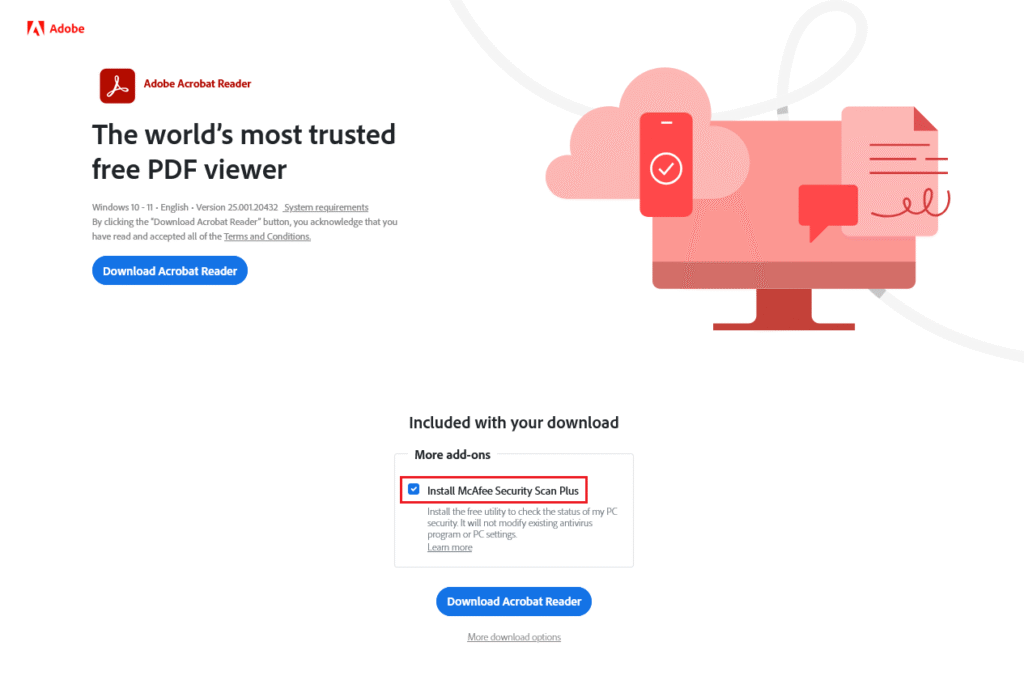
Note: I’ve expanded this image so that you can see the full thing. This is the official Adobe PDF website, and McAfee security scan plus is checked by default, even though most people don’t want it. If you’re not being extra careful, you’ll be scratching your head a few minutes after the install. Look out for pre-checked boxes!
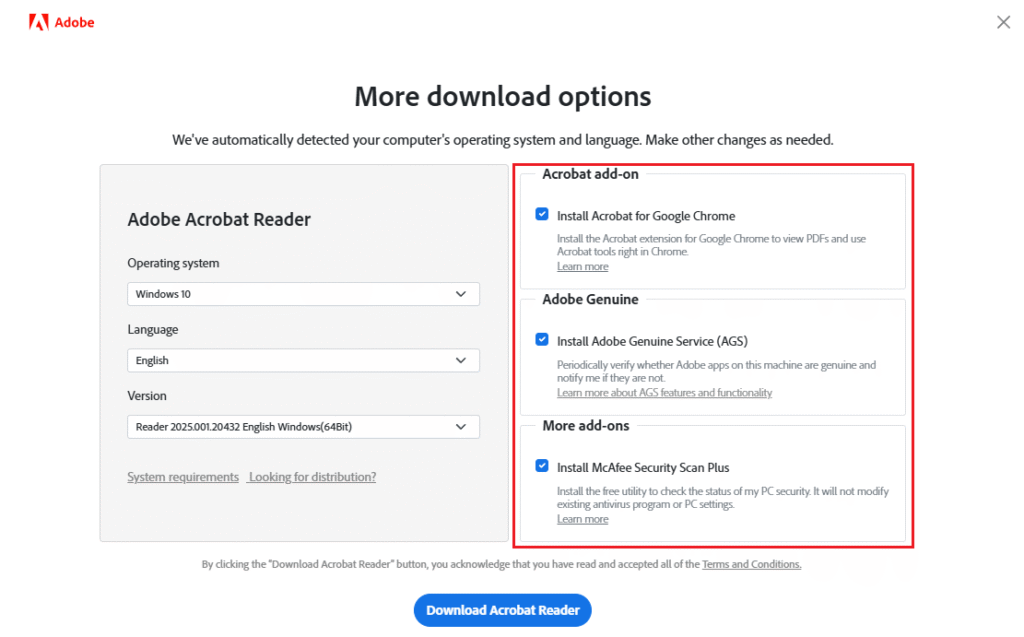
Additionally, in the case of Adobe, unchecking that box doesn’t even cover your bases. As if you click “More Download Options”, you’ll be met with an additional two checkboxes for things you may not want. If they need to bury these options away, it’s probably for a good reason. It’s quite a scummy, dishonest business practice, and is done simply because Adobe earns a commission from McAfee on each install and registration.
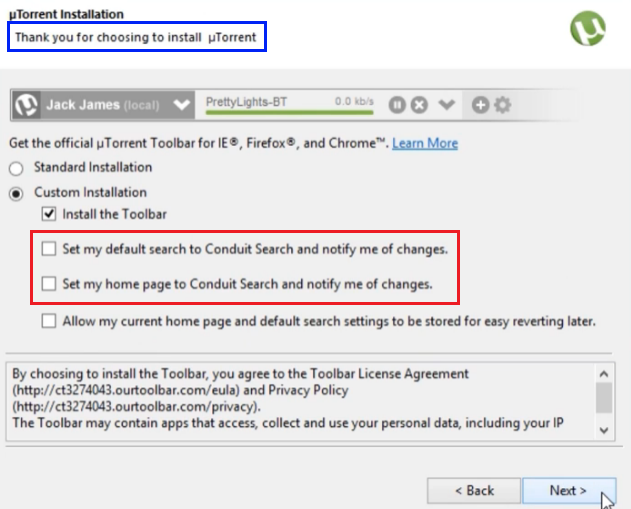
Here’s another example. You’re installing an app called uTorrent. If you’re not paying attention, the next time you search for something online, you’re default search provider will changed from Google to Conduit Search. Would you know how to change it back? Let’s uncheck those.
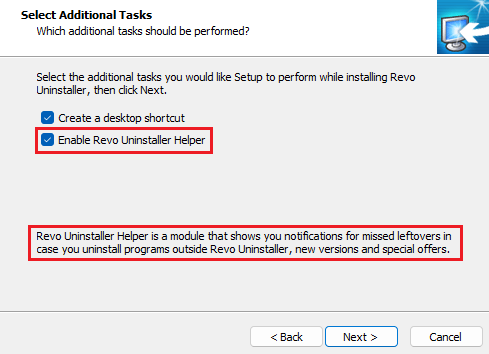
Finally, here’s an even sneakier one. This is from a program called “Revo Uninstaller”. So, the checkbox “Enable Revo Uninstaller Helper” looks appropriate!
Wait. What’s that written at the bottom? Ah… “special offers”. Looks like we should get rid of that too.
4. User Account Control

Does this look familiar? It’s a security feature in Windows that prevents apps from writing to certain locations or performing administrative tasks without user-consent.
There’s some misconception online about what exactly this pop-up really does. What specifically triggers Windows to show this pop-up? What’s the difference between pressing X or No? Why does it ask for the password sometimes but not always? Why is the title sometimes yellow and other times blue?
I’ll answer these all these questions and more when I cover UAC in-depth another time, but there’s one important thing you should know for your security. Many default Windows apps are excluded from this security pop-up. Apps like Task Manager and Settings would normally trigger this, but since people were bothered by the frequency of seeing it, Microsoft created bypasses for those apps. You may see where this is going.
Malware takes advantage of these exclusions. If a nefarious application launches itself through one of these Microsoft-signed applications, it completely bypasses User Account Control. This is very well-known, and will likely not be “fixed”. It’s just an example of Microsoft prioritizing user convenience over security. The solution I’ll provide at the end will patch this up without inconveniencing you.
That’s the most important stuff.
I could run through more scenarios, but these are the encounters I run into most commonly, so I wanted to explain them in detail. Now that you’re enlightened, let’s actually do something about these problems, shall we?
How to protect your device
1. Install an Adblocker
Reminder: Please donate to the free and open-source software that provides you with value, and whitelist publishers that you visit frequently and trust. If you want to see change, be part of the difference.
I recommend uBlock Origin for this, as it’s one of the most robust out there. It’s a simple program that blocks mounds of dangerous content on the internet. All of the block lists are maintained by regular people and audited by a subset of them- no corporate bias here. The software itself is developed and maintained by Raymond Hill.
You’ll install this to your web browser. Follow the link for the one you have.
Unfortunately, Safari on Mac is not yet supported. Don’t worry, though, you can still follow the next method.
Is uBlock Origin safe to install?
uBlock Origin is open-source software. This means that all of the application’s programming is freely available for anyone (including you) to view. It’s also contributed to and audited by other people. It works by downloading a list of known bad websites and content, and then comparing the content your web browser loads against that list. If your computer attempts to load anything that’s been blacklisted, the attempt is blocked. This process happens fully on your device; no data is sent anywhere besides the new blocklists being downloaded on browser startup and application updates.
After adding the extension, you’re done! There’s nothing else you need to configure. You’re now protected against malicious advertisements, clickjackers, JavaScript exploits, malicious redirects, online tracking, and a whole lot more. To whitelist certain webpages, or disable blocking for them, click the uBlock icon in your browser’s toolbar, and then the power button. This disables it only for the website you’re on right now- not entirely.
2. Set up NextDNS
This is a more recent recommendation from me, but it’s been so immensely effective lately, I had to include it. If you’re at all interested in safeguarding your computer against malicious activity, I highly recommend setting this up. It takes a little effort, but it’s worth it.
NextDNS, as the company writes themselves, is “the new firewall for the modern internet”. It’s essentially a gatekeeper between your device and the rest of the web. Every time you visit a website or open an app, NextDNS looks up information about the destination, and determines if it’s safe. Unlike uBlock Origin, this works in the cloud and has a more comprehensive database of threats. Even if you already trust all your apps and websites, they’re still connecting to other destinations behind your back. NextDNS also allows you to monitor this behavior and learn what your devices are doing. It can even save you from a malware infection, depending on how the malware is written.
Configure it
- Visit https://nextdns.io, and take a look around. When you’re ready, click “Try it now”.
- Under the Security tab, enable the following additional options:
- AI-Driven Threat Detection
- Block Newly Registered Domains
- Block Parked Domains
- Under the Privacy tab, click add a blocklist, and add OISD.
- Also under the Privacy tab, scroll to the bottom and enable “Allow Affiliate & Tracking Links”. If you were to leave this disabled, some links inside of emails may stop working. It’s up to you, though! I’m focusing more on usability here.
- Under Parental Control, scroll to the bottom, and enable Block Bypass Methods. This is crucial to do, as many applications will actually try to bypass this app after you set it up! Turn this on to prevent that, and force applications to use your new settings only.
- If you use the Opera web browser, add the following URLs to the Allowlist tab.
- opera.com
- opera-api.com
- opera.software
- If any websites or apps you use are negatively affected by the “Block Bypass Methods” setting, please reach out and I’ll update the guide. It’s important that you do not disable this setting.
- If you use the Opera web browser, add the following URLs to the Allowlist tab.
- Lastly, under the Settings tab, enable “Block Page”, and “Cache Boost”. The block page helps us more easily see why something was blocked. Cache boost just helps you stay under the free quota limit.
Install the Apps
NextDNS provides easy instructions for this already, but I recommend using their official app on Windows since it’s much simpler.
- Click the Setup tab. Your device should be auto-selected.
- Windows users should click here to download the NextDNS app. When asked for your Configuration ID, enter the ID that’s shown under the Setup tab > Endpoints > ID. Click save, and you’re set!
- Mac, iOS, and Android users should follow the first link that NextDNS recommends under the Setup tab. Install the profile, and that’s done!
- To test if it’s working, visit a blocked website like https://doubleclick.net. (Google’s Ad Network)
- If it’s blocked, you did everything right! Enjoy better protection against emerging web threats.
- If you’re redirected to a Google marketing page,
- Check that you entered the correct Configuration ID. It should be 6 characters.
- Make sure the app or profile is installed and running.
- Restart your device.
- Don’t forget to save your settings to an account!! Click the “Sign up” button at the top of the NextDNS website to complete your registration.
That’s all there is! In my testing, NextDNS blocked access to fake links in text messages, malicious website redirects, and even some malware on my device from connecting to its attacker’s server.
3. Browser Notifications
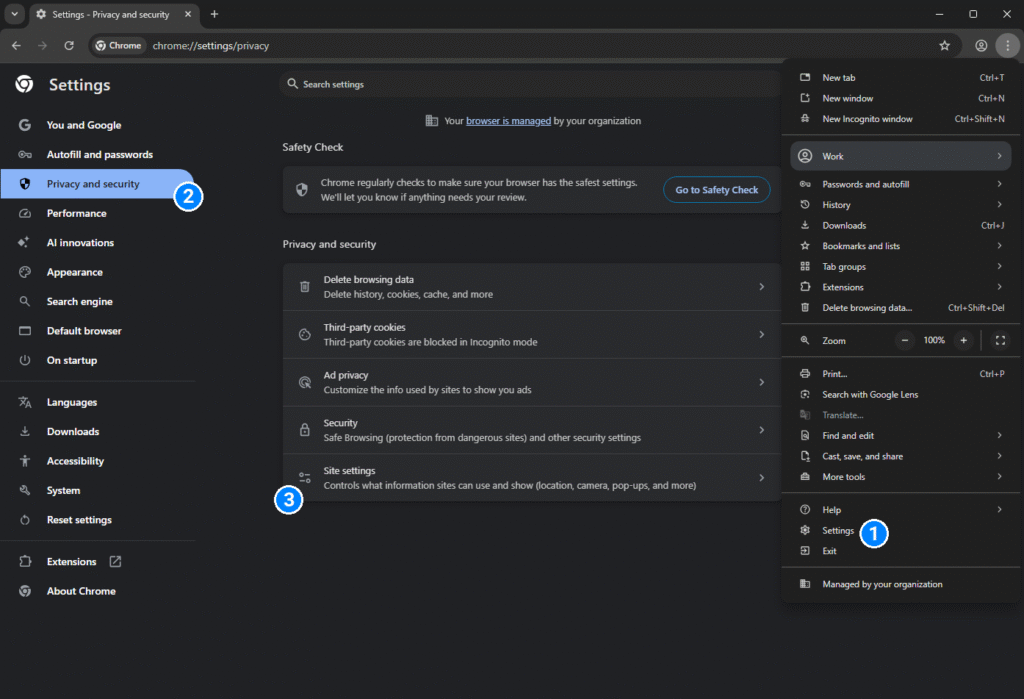
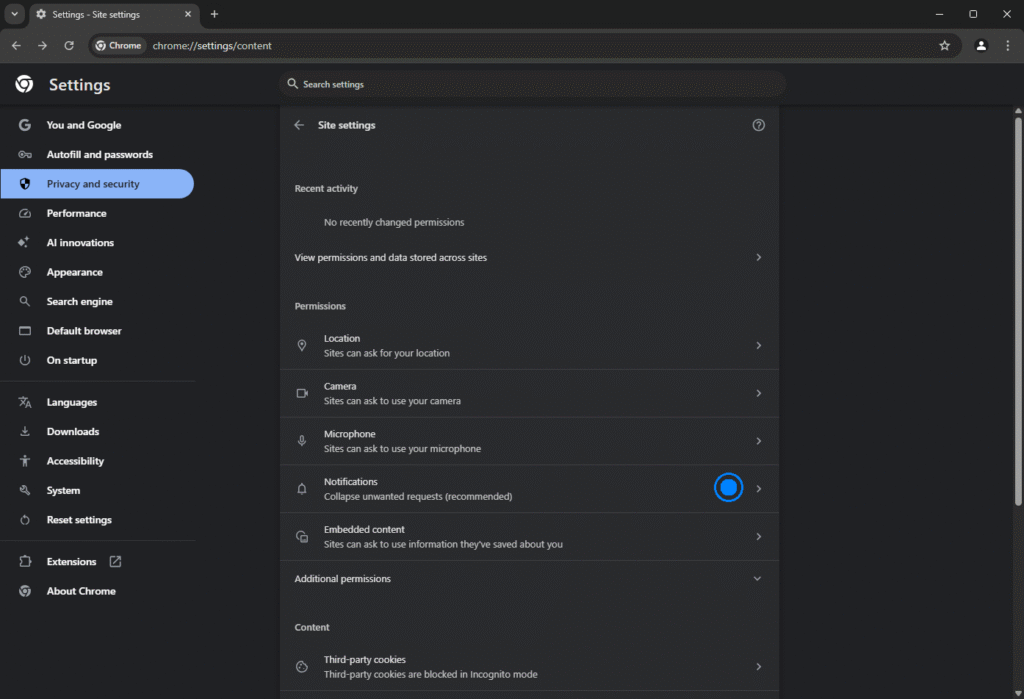
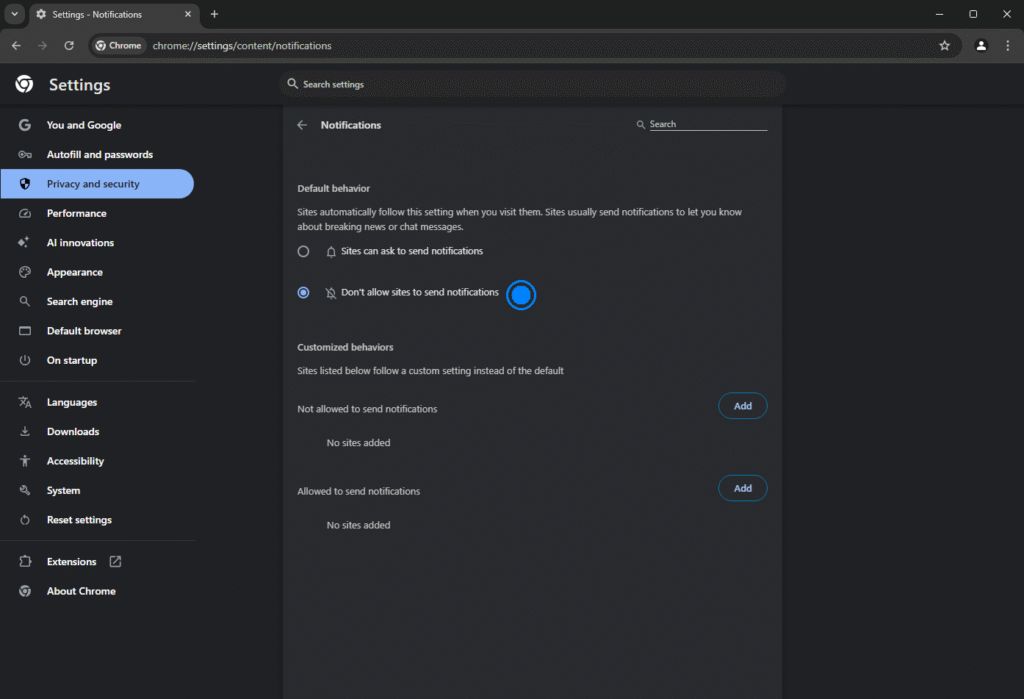
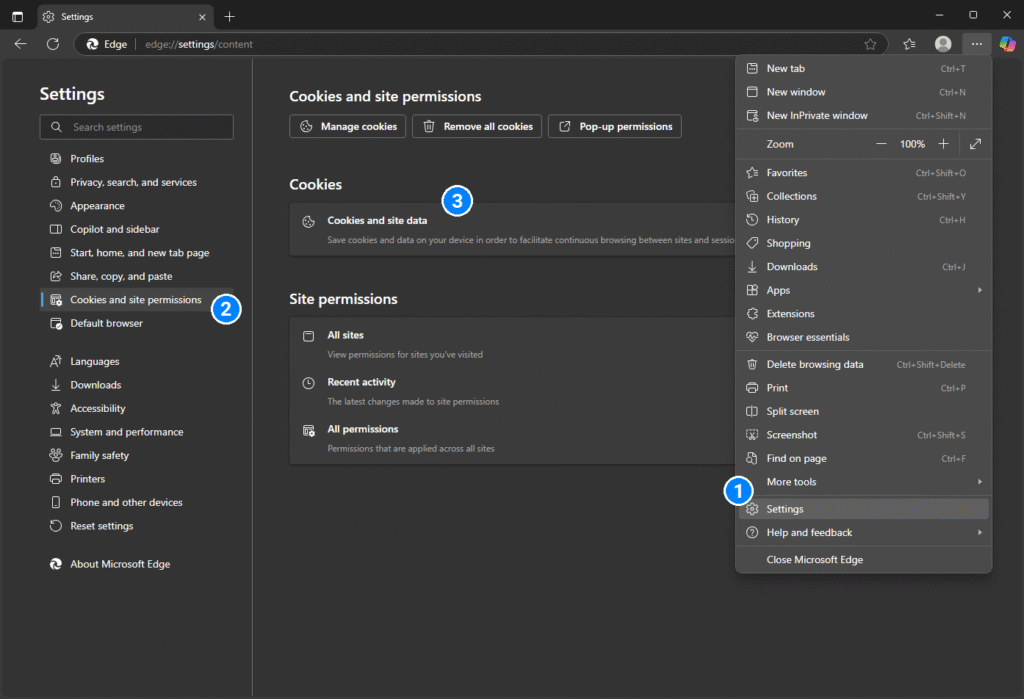
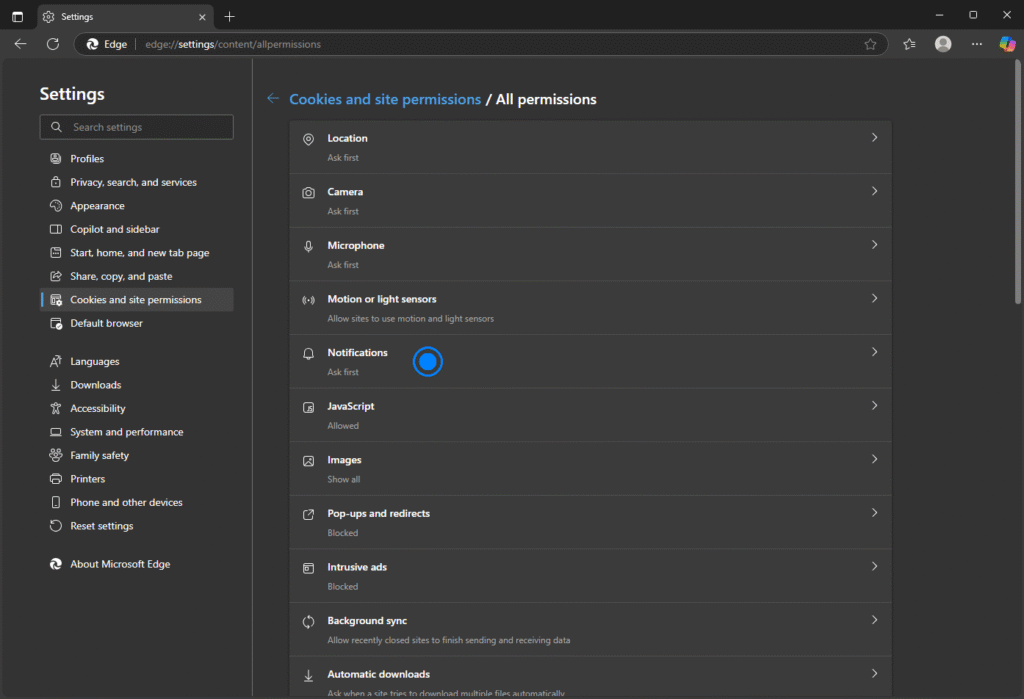
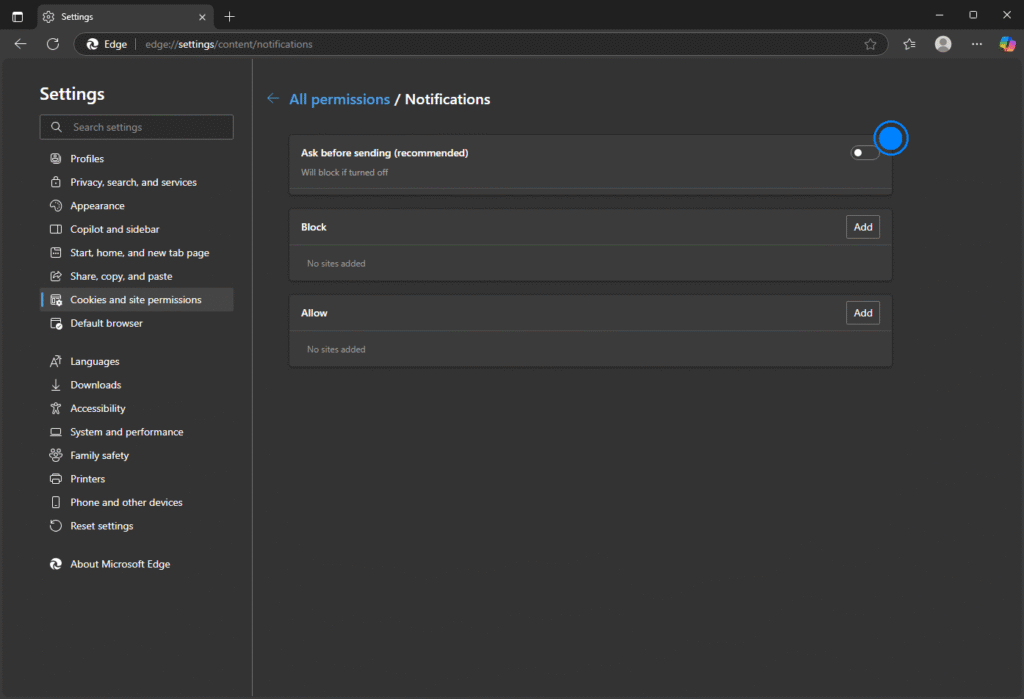
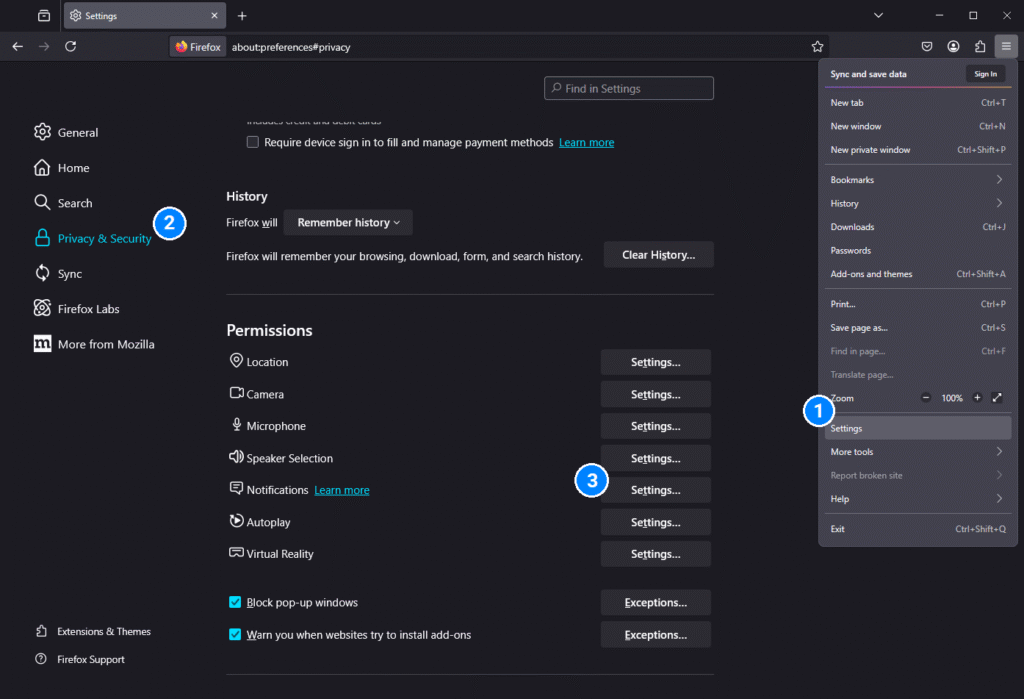
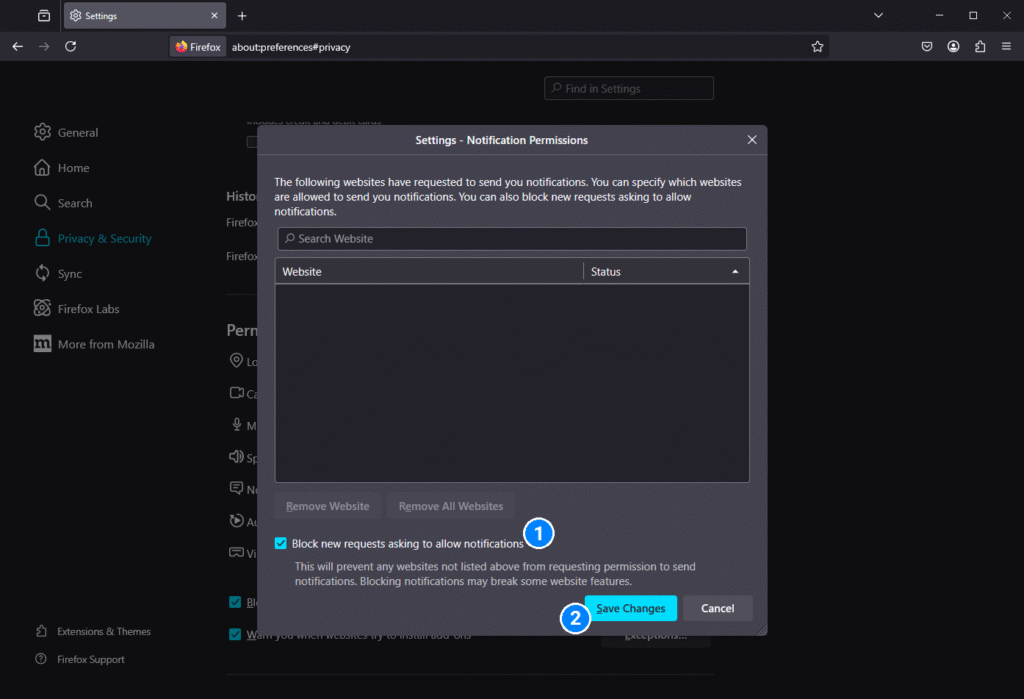
To avoid getting those fake “critical virus” notifications you saw earlier, it’s best to remove your browser’s ability to send you notifications. Here’s how to do it in 3 of the most popular browsers.
Click any below section to expand it.
Google Chrome
Microsoft Edge
Mozilla Firefox
4. Harden User Account Control
I’ve actually gotten my hands on malware that utilizes the built-in exclusions I previously touched on to infect your system. When I applied the simple tweak I’m about to show you, that malware was prevented from running.
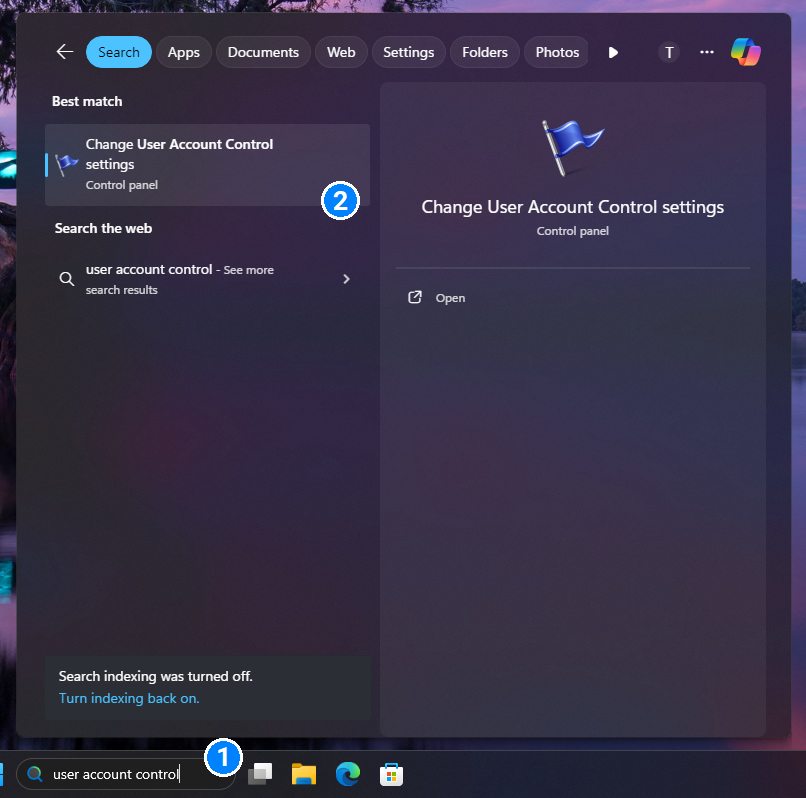
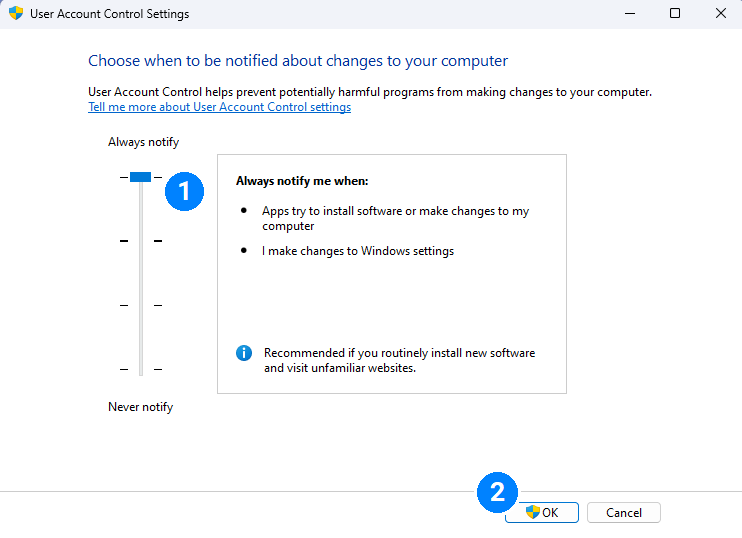
To test it out, try and open an app like Task Manager. You should notice that it now asks for your permission! Not that you’d want that for Task Manager specifically, but this demonstrates that the Microsoft built-in apps that were excluded from this prompt are now treated just like any other app you might download.
If you follow the above steps and don’t get a security prompt, it’s likely because you’re not logged in as an administrator. If that’s the case, you’re already protected against this bypass, so there’s nothing to worry about.
5. Don’t use your browser’s password manager (Bonus Tip)
This will evolve into its own article in the future, but if you’re clicking “Save” when your browser asks you to save passwords, you should probably stop doing that. It’s the first place malware checks when it infests your system, and the data is not secured well at all. If you’ve noticed, you’re never asked to re-authenticate before auto-filling a saved password in popular browsers. Your browser-stored passwords are protected with a unique key specific to your computer. The issue is, that same key is also accessible to any other app on your computer, rendering the “encryption” less useful. You can think of it like locking a chest and putting the key right on top. That’s the level of security your default browser’s built-in password storage has. If you’re interested in learning more about how this works, I plan to write in-depth about it soon.
To avoid this, you should increase your security by using a reputable third-party password manager. Of course, writing them down in a physical notebook works just as well, if that’s what you prefer. If you’ve come to rely on the convenience your browser offers you with its auto-fill feature, 1Password, Bitwarden, and Keepass are three products I recommend to replace your browser’s password manager. In a future article, I’ll also talk more on the security and trustworthiness of various password managers, and do my best to answer some common questions/concerns.
That’s all for now…
…but there’s still more to come. Hopefully, you found these tips insightful and learned a thing or two about the most common ways Windows devices get “slow” or “infected”. Online security, social-engineering, and data privacy are an entirely other ball game, and are equally as important most of the preventative measures I’ve described. If you’re interested in staying up to date on any other content that gets posted, feel free to use the below form. Thanks for your time!